
Discord channels overview
After installing the bot, your Discord server picks up a small, predictable channel layout. This page is a tour of every channel and category the bot manages — what shows up when, what each one is for, and which web feature it pairs with.
Only one channel appears at install time
A fresh /guild pair creates exactly one category and one channel: 🛡 AO Master + #⚙️-guild-settings. The 🎯 Enlist category appears later when you click the Enable Enlist button. No upfront clutter.
1. 🛡 AO Master category
The container for every channel the bot manages. Created once by /guild pair and left in place until you unpair. Its permission overrides decide who can see all the channels inside — so you set visibility on the category, not on each channel.
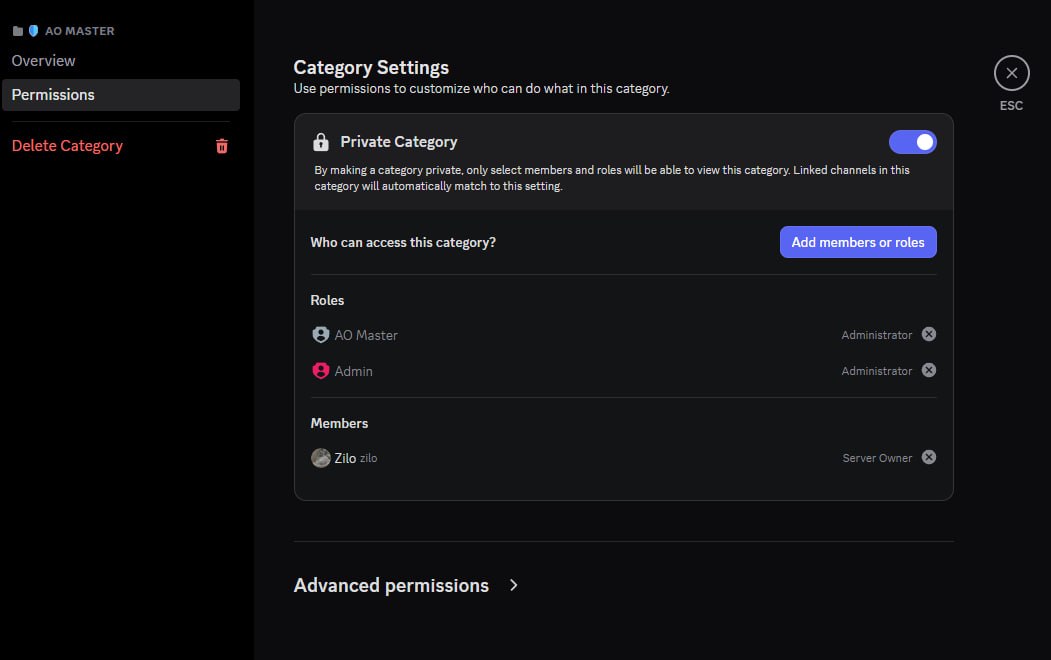
Inside the access list you'll always see:
- 🔵 AO Master role — Discord auto-creates this for the bot itself. The bot uses it to bypass visibility rules on its own channels. Leave it alone.
- Your server owner — that's you, the person who ran
/guild pair. - Any Discord roles you picked in the wizard's visibility step (see Install — §9).
To broaden or narrow visibility later, right-click the category in Discord → Edit Category → Permissions and add or remove roles. Every channel inside inherits the new list automatically.
2. #⚙️-guild-settings channel
The settings hub. Open it once, pin it in your favourites — every guild-wide bot action lives here behind a pinned message with buttons.
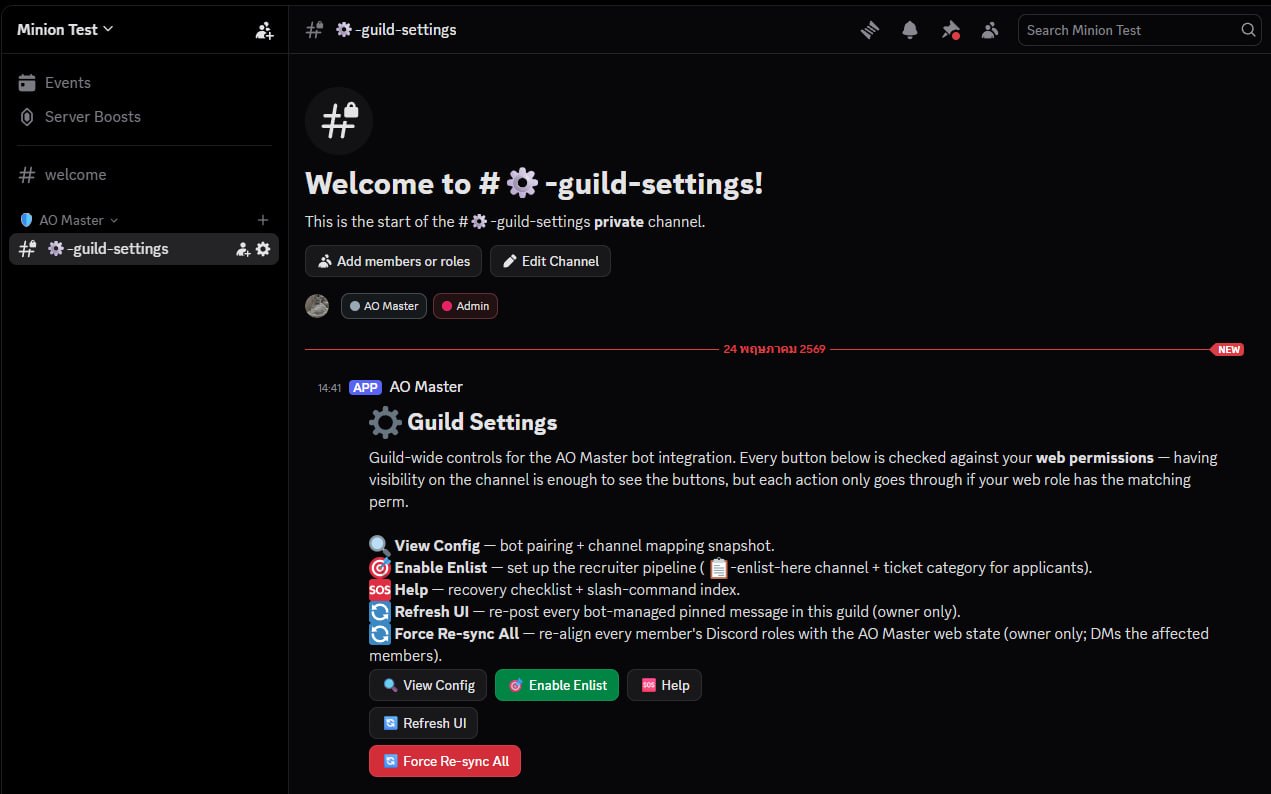
The pinned message has five buttons:
| Button | What it does | Who can use it |
|---|---|---|
| 🔍 View Config | Shows a snapshot of the current pairing — Discord server ID, AO Master guild, channel mappings, and which Discord roles have which web roles. | Anyone with channel visibility. |
| 🟢 Enable Enlist | Opens the 🎯 Manage Enlist panel. From there you pick recruiter Discord roles, confirm, and the bot provisions the Enlist pipeline — #📋-enlist-here + the 🎯 Enlist category + the pinned [Enlist] button. The same button reads 🎯 Manage Enlist once Enlist is set up. | Guild owner or Manage Integrations. |
| 🆘 Help | Recovery checklist when the bot looks broken (kicked, channels deleted, etc.) + an index of every slash command. | Anyone. |
| 🔄 Refresh UI | Re-posts every bot-managed pinned message in this guild. Useful if a Discord admin accidentally deleted a pinned message. | Guild owner only. |
| 🔄 Force Re-sync All | Walks every linked member and reconciles their Discord roles against the AO Master web state. DMs anyone whose roles change. | Guild owner only. |
Visibility ≠ permission
Anyone who can see the channel sees these buttons. The buttons themselves still check your AO Master web role — clicking Refresh UI as a regular member won't do anything; the bot just replies with a "you don't have permission" message. Use Discord's category permissions to keep the channel visible only to staff who actually use these buttons.
3. 🎯 Enlist category (dynamic)
Appears the first time you click 🟢 Enable Enlist in #⚙️-guild-settings (or run the Enlist setup from the web). The category holds:
#📋-enlist-here— the public channel applicants find. Pinned at the top is a single [Enlist] button. One click opens a per-applicant private ticket inside the same category.🗄 enlist-archive— a forum channel where the bot stores a complete transcript of every closed ticket (with the original author names, avatars, and attachments). Created lazily — it doesn't show up until the first/enlist done. The forum's name picks up the prefix from the channel-name template, so if you changed the template toapply-{user}the forum becomes🗄 apply-archive.#enlist-{username}channels — one private channel per applicant, created when they click [Enlist]. Visible only to the applicant + your recruiter roles. Stays open after Approve (so recruiters can keep chatting) and is deleted only when a recruiter runs/enlist done. The channel-name template is configurable; default isenlist-{user}.
Full walkthrough lives on Enlist flow on Discord.
4. The AO Master Discord role
Separate from any category, but worth knowing about: Discord automatically creates a role called AO Master when the bot joins. It's the role attached to the bot's user account.
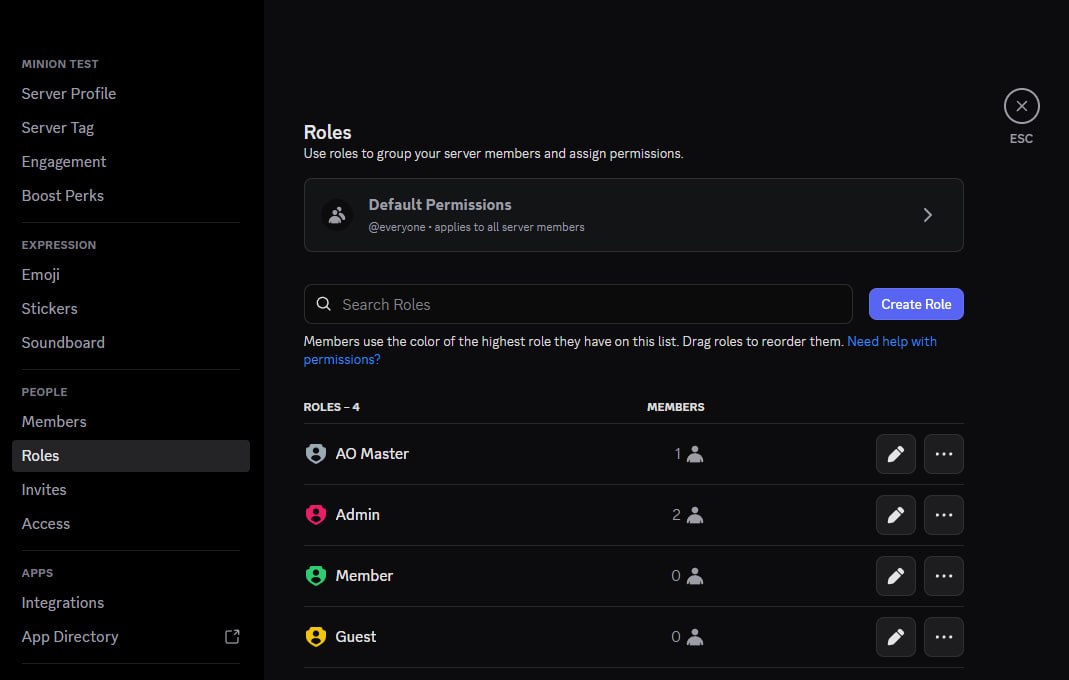
You'll see it in the role list with a count of 1 (the bot itself is the only "member"). It's how Discord grants the bot its Administrator permission across the server.
Don't:
- Delete it (the bot loses its admin power and the integration breaks).
- Assign it to a human (would grant a human the bot's elevated permission scope on Discord — not useful and confusing).
- Pick it as a visibility role in the wizard (
/discord/install#step-9-pick-channel-visibility) — the bot already bypasses overrides for itself; ticking the role does nothing extra.
Putting it all together
After a fresh install:
Discord server
├── (built-in channels — #welcome, voice etc.)
├── 🛡 AO Master                      ← static, created by /guild pair
│   └── #⚙️-guild-settings            ← static, the control panel
└── (no other categories yet)
After enabling Enlist + an applicant has clicked [Enlist] once + a recruiter has run /enlist done at least once:
Discord server
├── (built-in channels)
├── 🛡 AO Master
│   └── #⚙️-guild-settings
└── 🎯 Enlist                          ← dynamic, on Enable Enlist
    ├── #📋-enlist-here                 ← the public [Enlist] button
    ├── 🗄 enlist-archive (forum)       ← appears on first /enlist done
    └── #enlist-newbie01                ← per-applicant ticket (stays open until /enlist done)
The bot owns and prunes every channel above. Don't manually rename or move them — the bot looks them up by category name to recover from outages, and a hand-renamed channel ends up duplicated or orphaned.
Cross-links
- Install the bot — the wizard that creates the 🛡 AO Master category + #⚙️-guild-settings.
- Enlist flow on Discord — how the 🎯 Enlist category gets populated.
- Member ops on Discord — the
/whoamilink flow and how role sync mirrors web → Discord. - Slash commands appendix — every slash command users (and staff) can run.
- Settings → Discord Integration — the web mirror of pairing state + role mappings.