
Item mode — cut-off task + Pick Checker + locker
In item mode, staff physically pulls items from the guild chest, packs them into each member's personal locker, and confirms delivery in AO Master. This page walks the packer flow end-to-end: turning approved regears into a Cut-off Task, using the Pick List to know what to pull, the Pick Checker to compare against your chest log, and the Recipients tab to mark each member delivered.
For the alternative — pay silver from the Silver Bank instead of packing items — see Silver mode — payout. For the upstream approval step, see Staff — review + approve. For both modes at a glance, see Regear pipeline overview.
Permissions
The packer flow uses three permissions, all under Edit Role → Permissions:
| Action | Permission label | Where it's used |
|---|---|---|
Create a cut-off task (from #Review Requests bulk action) | Approve Regear Requests | Same permission as approving. The "Create Cut-off Task" button on the Approved tab is gated on this. |
| Claim an unassigned task (the Take Task button) | Claim Cut-off Tasks | A dedicated narrow permission so guilds can have packer-only staff who can't approve. |
| Edit / undo / rename any task regardless of who created it | Supervise Cut-off Tasks | Optional. Without it, staff can only release or complete the tasks they personally claimed. |
| Reassign lockers between members | Manage Lockers | See Lockers. |
Mode gate
The #Cut-off Tasks channel only appears in the sidebar when the guild is on payout mode = Item delivery (Settings → Regear Policy → Silver Regear). In any of the silver modes, approved regears are paid out by the Payout action on #Review Requests instead — see Silver mode — payout. Historical tasks created before a mode flip stay readable for audit; only fresh creation is blocked.
From Approved → Cut-off Task
The pipeline starts on #Review Requests. After staff clicks Approve on a request, it leaves the Pending tab and lands on the Approved tab — that's the queue of work waiting to be packed.
To turn approved requests into a task:
- Open
#Review Requests→ Approved tab. - Tick the rows you want to pack together. Most guilds batch by daily cut-off window (e.g. all approveds from the last 24h), but you can also batch by war role, by member, or however you organise your packer shifts.
- Click Create Cut-off Task in the bulk action bar.
- (Optional) Type a task name. If blank, the system auto-names it
Cut-off DD/MM HH:MMfrom the creation timestamp.
The task is created unassigned — anyone with Claim Cut-off Tasks can take it. The selected requests move out of the Approved tab (so a different staffer doesn't double-pull them) and into the task you just created.
Server-side guard
Only requests in Approved status can be added to a task — pending, rejected, and already-in-another-task requests are blocked with a clear error. This protects against stale browser tabs and concurrent staff clicking "Create" on overlapping selections.
The Cut-off Tasks channel
Open the channel under REGEAR TEAM → # Cut-off Tasks.
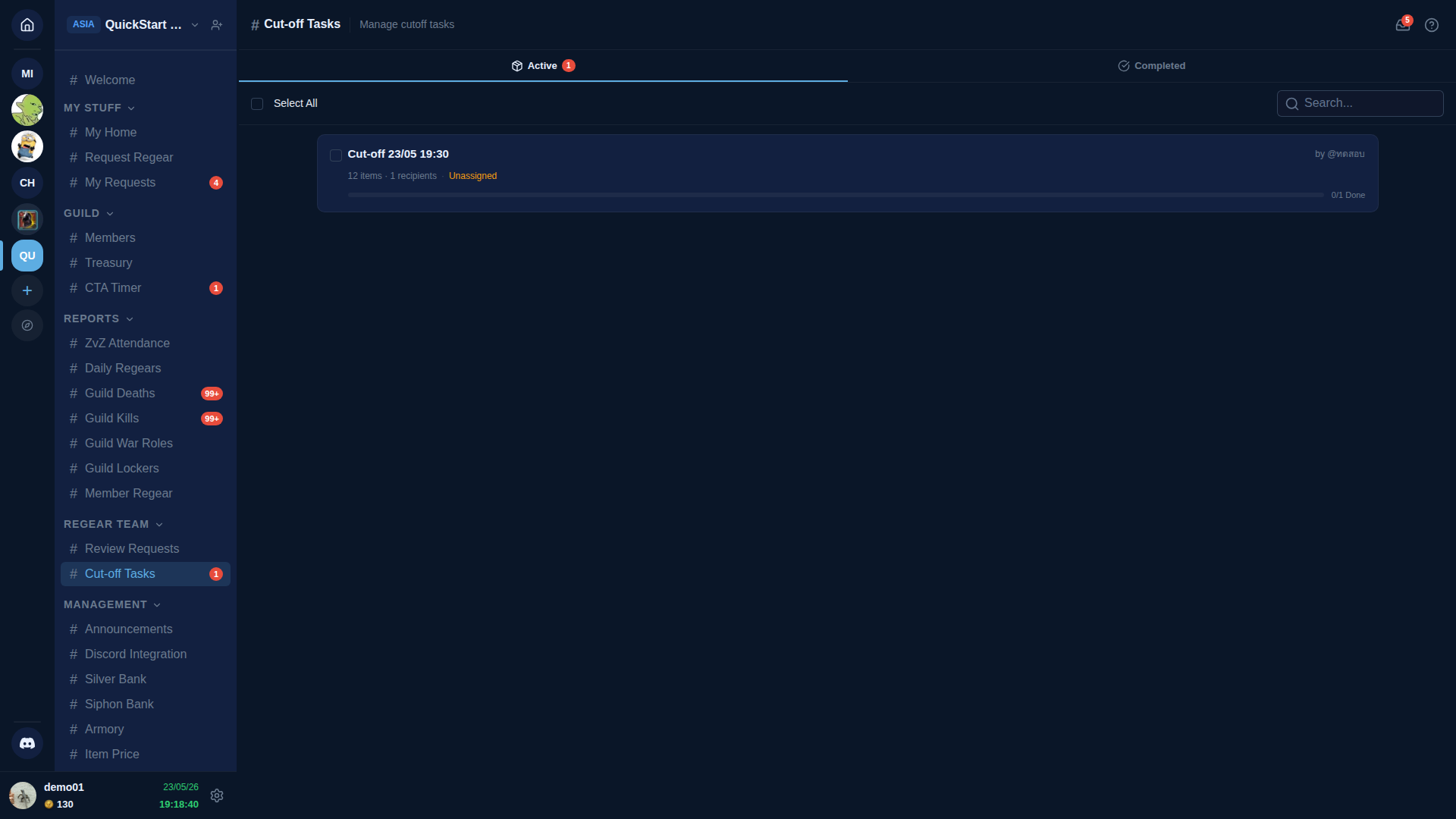
Two tabs at the top:
| Tab | What's there |
|---|---|
| Active | Tasks with at least one undelivered recipient. The Active tab is what packers work from. |
| Completed | Every recipient on the task is marked delivered. Kept for audit; no further action needed. |
Each task card shows:
- Task name (rename inline if you have Supervise Cut-off Tasks).
- Created by — the staff who built the task.
- Item count + recipient count — quick sizing signal.
- Assignee —
Unassigned(no one's working it) or@username(claimed). - Progress bar —
N / M Donerecipients.
Click any card to open the detail drawer.
Pick List — what to pull from the chest
The detail drawer opens on the Pick List tab. This is the combined list of every item every recipient needs, aggregated across all requests in the task:
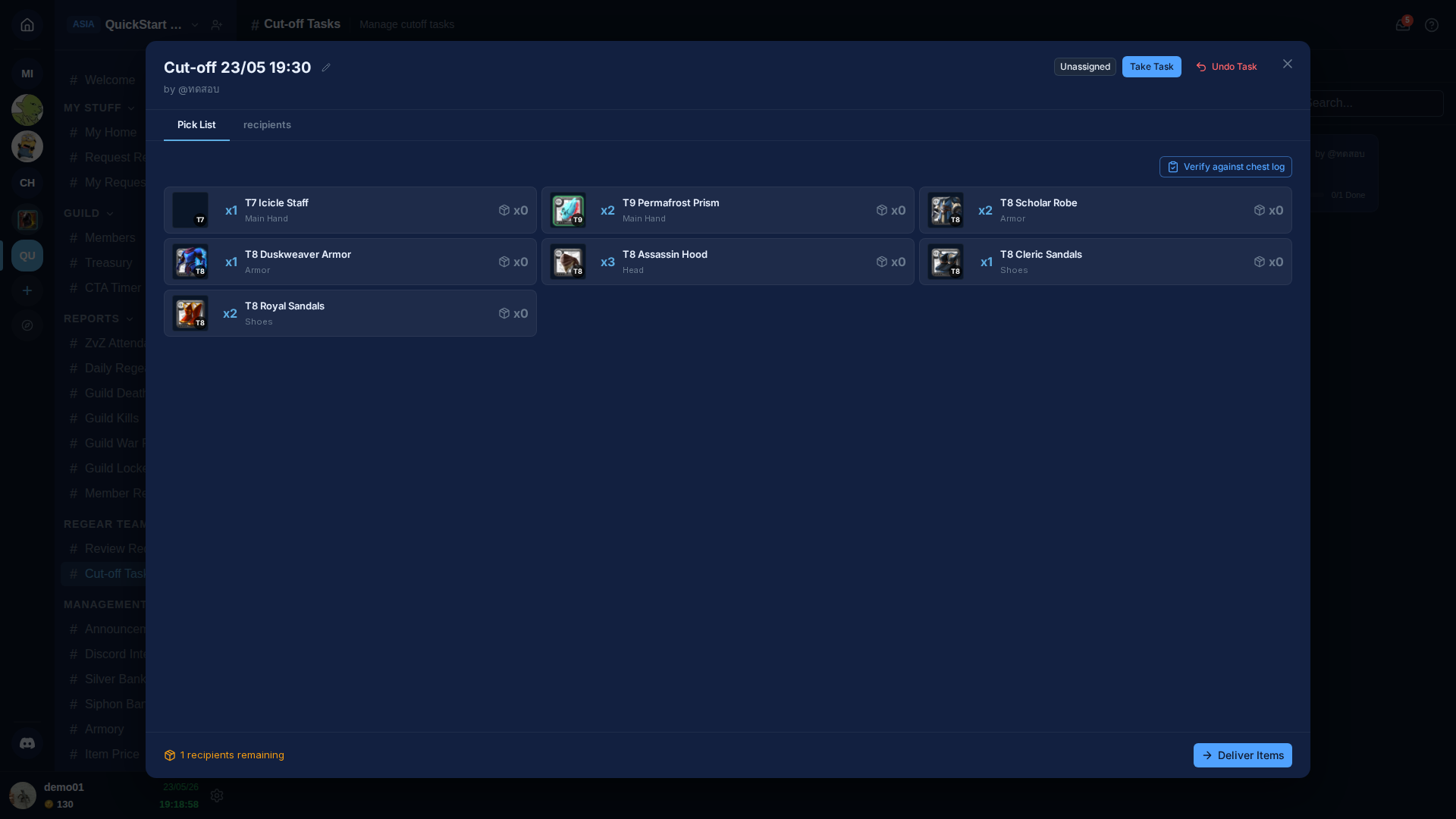
Each card shows the item icon (tier-aware), the quantity needed (x1, x2, …), the slot it goes into, and — if Armory is enabled — the current stock in your Armory (x0 when no stock or Armory off). The stock badge is the packer's "do I have enough to fulfil this task?" check.
The aggregation key is (itemBaseName, totalTier). Two recipients needing the same item at the same sum-tier (e.g. two T8 Knight Armors, regardless of whether they're T6+2 or T7+1 or T8+0) collapse into one row with x2. Different sum-tiers stay separate (T7 Icicle Staff and T8 Icicle Staff are two cards). See Item naming + tiers for the tier math.
The header has three buttons:
| Button | What it does |
|---|---|
| Take Task | Claim this task — assigns it to you so other packers see it's being worked. |
| Release | Unassign (shown when you hold the task). The release leaves the task in place; another packer can claim it. |
| Undo Task | Delete the task and send every linked request back to the Approved tab on #Review Requests. Useful when a task was created in error or needs to be re-batched. The requests do not lose their approved status. |
Verify against chest log (Pick Checker)
Once you've pulled items from the source chest and deposited them into the destination "For Regear" chest, the Verify against chest log button (top right of Pick List) opens the Pick Checker — paste the destination chest's deposit log and the parser tells you exactly what's matched, missing, extra, or unexpected.
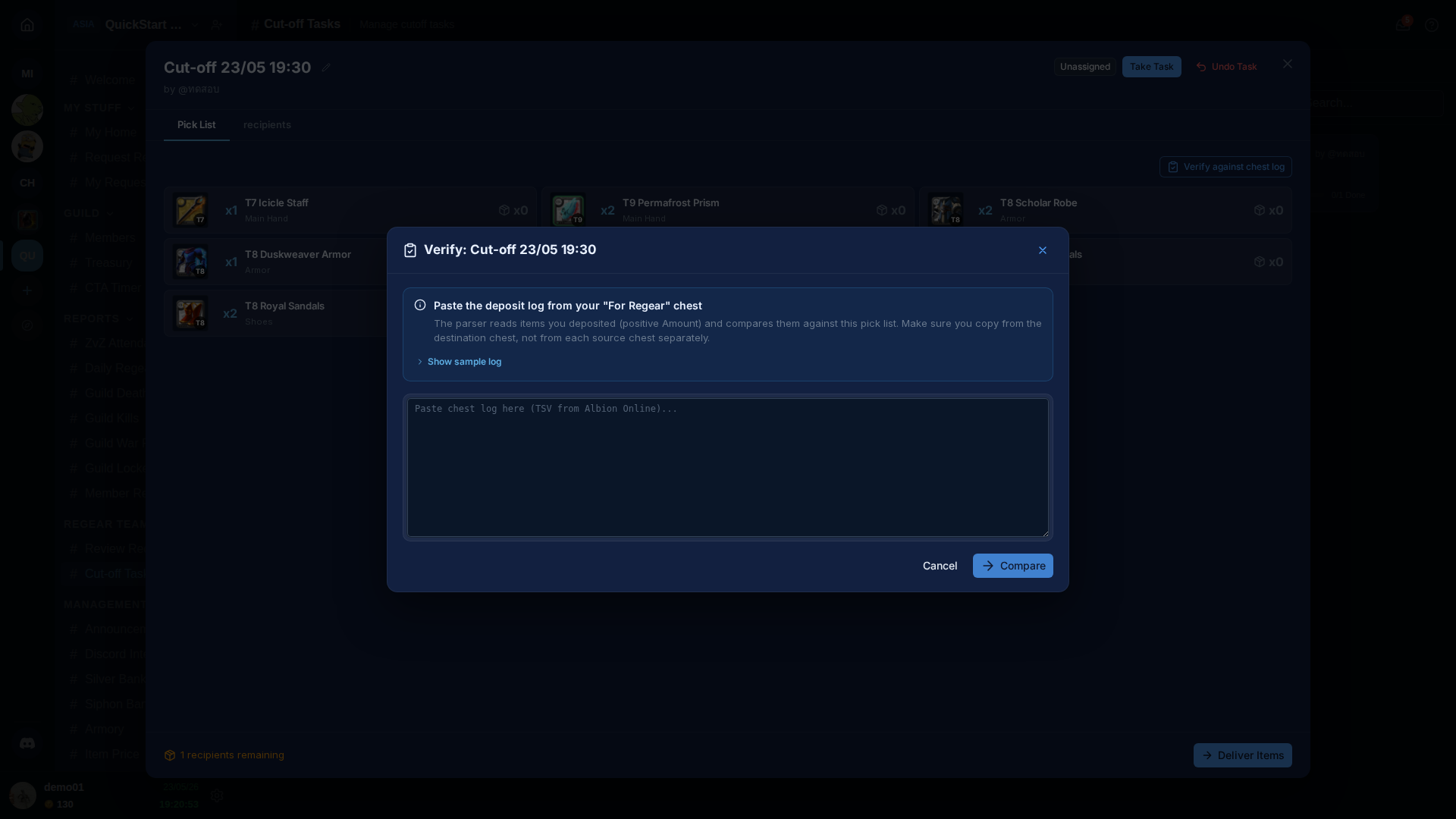
How to use it:
- In Albion, open the chest you used as the regear destination, right-click → Export log. Albion writes a TSV (tab-separated) file.
- Open the file, copy the rows for the time window you packed in, and paste into the textarea.
- Click Compare. The checker resolves every item name (any of the 14 Albion languages) and compares against the task's Pick List on a
(core item name, sum tier)key. Results land in three groups:- OK — need = got. The item was delivered as expected.
- Missing — need > got. You still need to pull it from the source chest.
- Wrong / Extra — got > 0 but not in the pick list. Probably pulled the wrong item or wrong tier.
The "Show sample log" disclosure expands a real EN-US sample so you can confirm what format Albion writes (the parser auto-detects the locale).
For the full design — why the tier-prefix-aware resolver exists, how the language detection works, and what the limitations are — see Pick Checker reference (internal design doc). For day-to-day packer use, the modal's instructions are enough.
Recipients — who gets what
Switch to the Recipients tab to see the per-member breakdown.
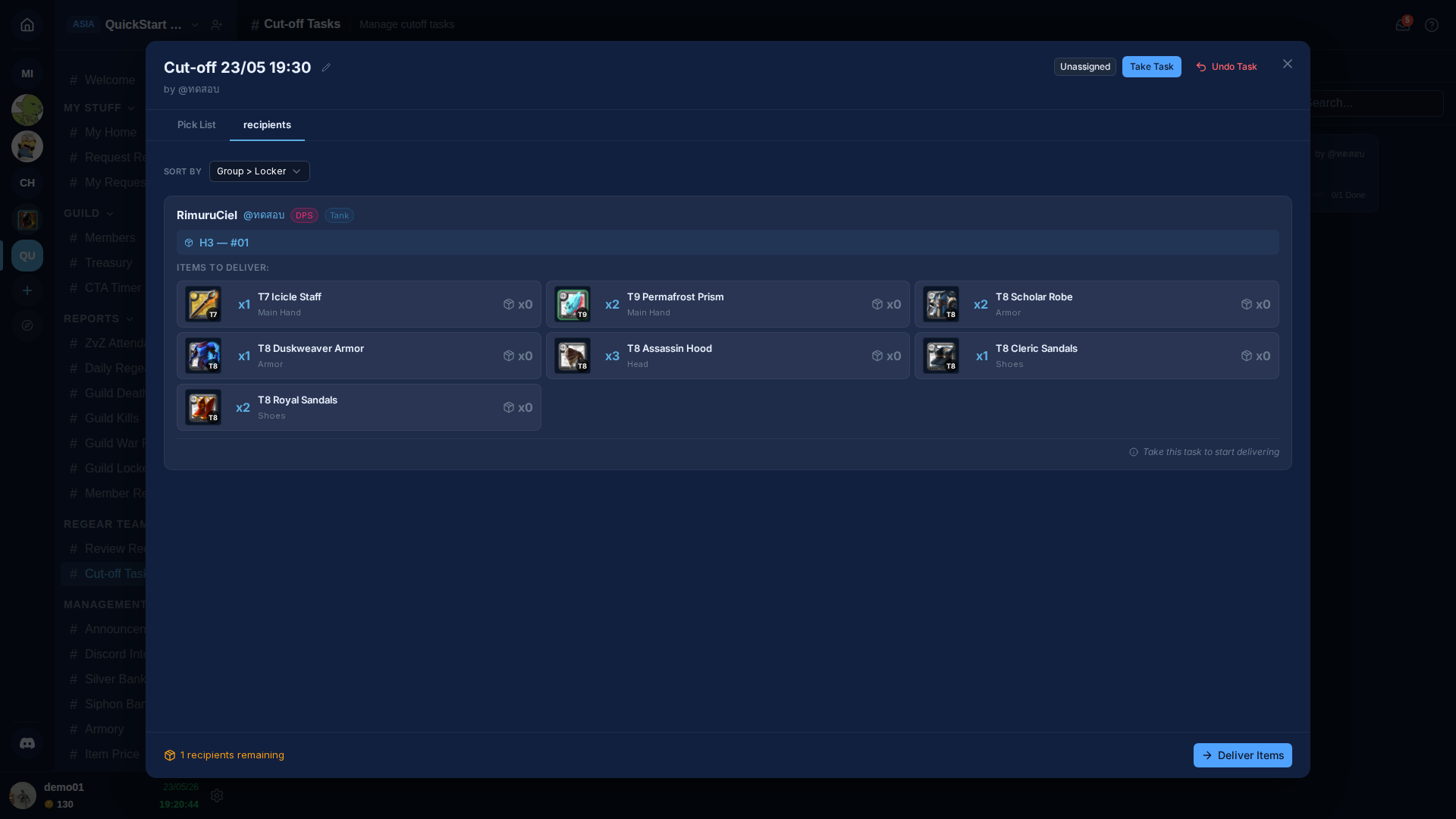
Each recipient row shows:
- Character name + linked Discord (
@username) + their war role chips for the requests in this task. - Locker badge (e.g.
H3 — #01) — the locker you'll pack into. The locker comes from the member's locker assignment on#Members → Lockeror the dedicated#Guild Lockerspage. Empty if the member has no locker assigned yet — fix this on the Lockers page before packing. - Items to deliver — exactly what this member should receive from this task. The item grid uses the same 3×4 layout as the regear submission overlay so the packer can quickly eyeball "all the gear slots are covered".
Sort order
The Sort by dropdown picks the order recipients appear in. The default is Group > Locker — recipients are grouped by the same physical chest group + locker number ordering as your Guild Lockers page. This means packing the list top-to-bottom = walking your guild chests in physical order. Two alternatives:
- War role — group by war role first (useful when one packer specialises in DPS regears and another in support).
- Character A-Z — alphabetical, no grouping.
Your choice is remembered per-user in your browser, so coming back to the page picks up where you left off.
Mark a recipient delivered
When you've packed everything into a member's locker, click Mark delivered on their row (the button is enabled only after you've Taken the task). This:
- Sets the per-request
completedAttimestamp. - Sets the request's
receivedAttimestamp, which flips the Delivered step on the member's#My Requestsrow. - Updates the member's
#My Requestsrow in real time — the badge flips to Delivered in their browser without refresh.
If you mis-clicked, Undo on the recipient row reverts it — works as long as the parent task isn't completed yet.
Finishing the task
When every recipient is marked delivered, the Deliver Items button in the drawer footer enables. Clicking it:
- Flips every linked request's status from
approvedtocompleted. - Sends each request owner a persistent inbox notification ("Your regear is ready — 1 request delivered in Cut-off 23/05 19:30").
- The task moves from the Active tab to Completed.
Safety gate
The task can't be completed while any recipient is still unmarked. If you see "N recipient(s) not yet completed", scroll up and find the missing checkmarks. The check is race-safe — even if a teammate un-marks someone the moment you click Deliver Items, only one of the two clicks wins and the other shows the error.
Concurrent packers — what's safe
The cut-off pipeline is built to survive multiple staff working at once:
- Creating a task — if two packers tick overlapping requests + click Create Cut-off Task at the same time, only one wins. The other sees an "already linked" error and just needs to refresh + re-select.
- Taking a task — the first to click Take Task wins; the second sees "Task was taken by another staff member."
- Releasing requires you to be the assignee, OR to hold the Supervise Cut-off Tasks permission. Supervise exists for the case where a packer goes offline mid-task and someone else needs to take over.
- Marking recipients delivered also requires you to be the assignee OR a supervisor.
Why "Claim" + "Take" coexist
The permission is called Claim Cut-off Tasks in the Roles editor — the action button on a task says Take Task. The wording difference is intentional: the permission name reads as "is this staff member allowed to be a packer at all?", while the button reads as "I am personally going to work on this task now". Both control the same action.
What the member sees
Once a recipient is marked delivered, the member's #My Requests row gains a green Delivered badge and a "📦 Items Ready" highlight. If they have Notifications enabled, an inbox entry like "Your regear is ready — 1 request delivered in Cut-off 23/05 19:30" appears in their bell-icon dropdown.
The items themselves live in the member's assigned locker. The member opens that locker in-game and pulls the gear out — AO Master never touches Albion's inventory directly; the locker is a real Albion guild chest you've configured the permissions on. The locker assignment is shown on the member's #My Home → Locker panel for reference.
When something goes wrong
| Symptom | Cause | Fix |
|---|---|---|
| Create Cut-off Task button disabled | Selection contains non-approved requests | Filter to Approved tab; deselect anything else. |
| "Already linked" error on Create Cut-off Task | Another staff just pulled an overlapping request into a task | Refresh the Approved tab + re-select. |
| Task locked / "Task was taken by another staff member" | Someone else clicked Take first | Refresh — their @username will show on the card. |
| Recipient has no locker badge | No locker is assigned to this member yet | Go to Lockers → assign → return + pack. |
| Pick Checker says "Wrong item" but you packed it | The pasted log includes a different item that has the same core_item_name + sumTier as your pick list | Re-check the Albion item names — different items can collapse on the same core key in rare cases. |
| Pick Checker shows the wrong language | The TSV header was missing or trimmed before you pasted | Paste the whole log including the first row Albion writes; the parser uses it to detect the locale. |
Cross-links
- Staff — review + approve — upstream step.
- Silver mode — payout — the alternative delivery path.
- Regear pipeline overview — both modes side-by-side.
- Lockers — assign / unassign / reset locker bindings.
- #Cut-off Tasks — short channel reference.