
Settings → Roles
The Roles tab is where you build the permission structure for your guild. Open it from the Settings modal under PEOPLE → Roles.
A role is a colour + a name + a set of permission toggles. Members get the union of all the roles they hold. Reordering matters for the displayed colour (highest role wins) and for who can edit whom (you can only edit/assign roles below your highest).
For the full permission table — every bit, what it gates, who typically gets it — see Permissions reference.
Permissions
This tab requires Manage Roles to open. The Owner (the user who created the guild) bypasses all role checks and can edit any role regardless of position. Anyone else can only create roles below their own highest role and only assign permissions they themselves hold.
Default Member Role
The card at the top picks which role gets auto-assigned to every new member when they join the guild. Setting it to None leaves new members with no role at all — they'll need to be assigned roles manually before they can do anything beyond the always-public channels.
The default role is a normal role like any other — you can edit its permissions, rename it, change its colour, or pick a different one as the default whenever you want. There's no "@everyone" magic — it's just whichever role you've nominated.
The role list
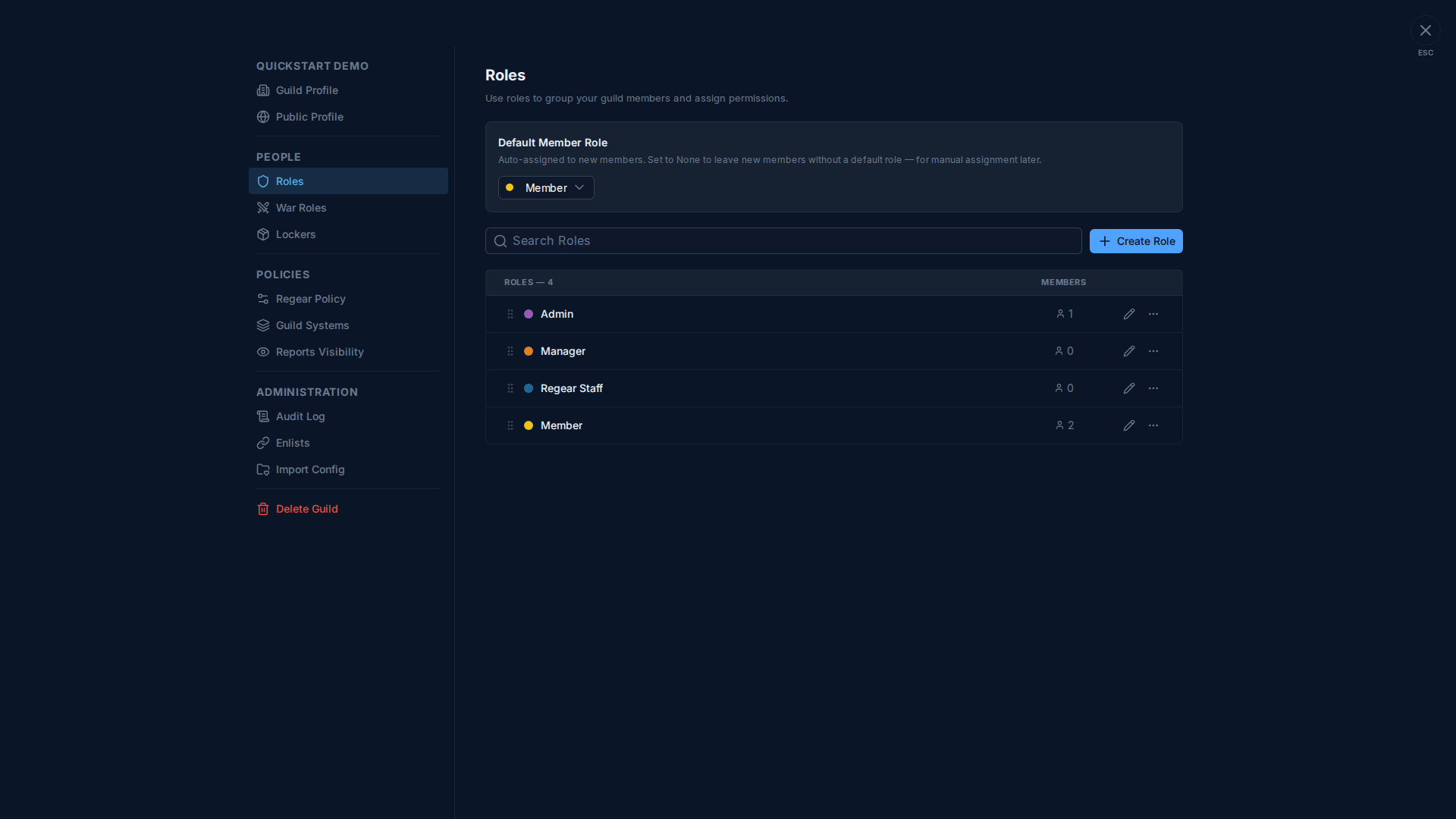
Each row shows:
- Drag handle (left) — drag to reorder. Role order decides who can edit whom: you can only edit / delete / assign roles below your own highest role.
- Colour dot + name — the colour is what shows up on the member's name in the roster + their
@usernamechip. - Member count — how many members hold this role.
- Pencil icon — open the Edit Role overlay (same as clicking the name).
- 3-dot menu — delete role, duplicate, rename quick-action.
Click anywhere on a role row to open the Edit Role overlay.
Edit Role overlay
The overlay has three tabs: Display, Permissions, Members.
Display tab
Edit the role's Name and pick its Role Color from the 21-colour swatch grid. The colour grid is fixed (no custom hex picker) — keeps the roster looking consistent across guilds.
Permissions tab
Where the actual work happens. Permissions are grouped into named sections; each row is one toggle with the permission label, a one-line description of what it gates, and the toggle itself.
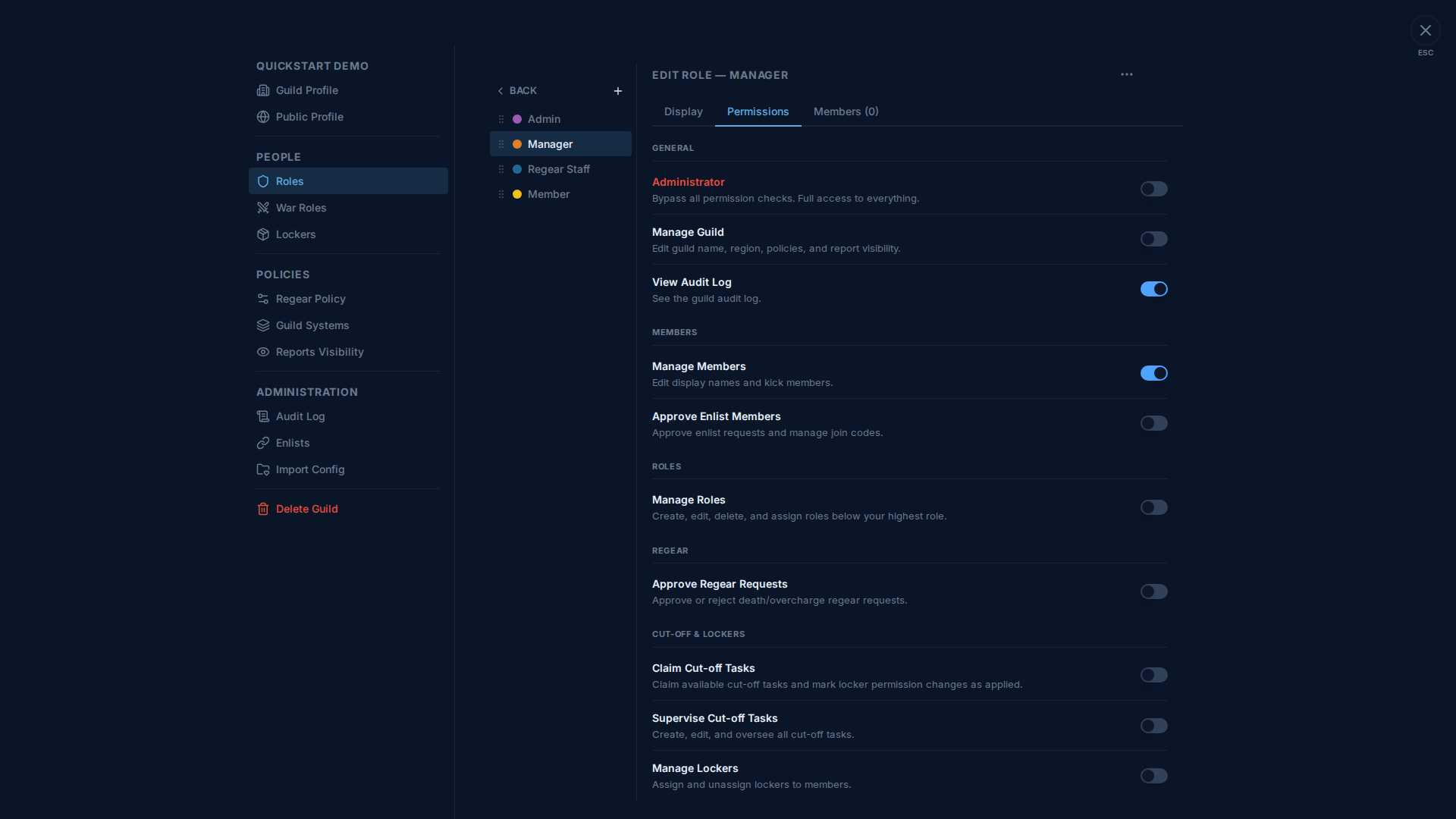
The grouping in the screenshot reflects the eight permission categories — scrolling down reveals more (WAR ROLES, ANNOUNCEMENTS, MEMBER SELF-SERVICE, INTEGRATIONS, BILLING, BANK, ZVZ ATTENDANCE). Full list with descriptions: Permissions reference.
The Administrator permission
Administrator (the red-highlighted toggle in the GENERAL section) is a master override — a role with Administrator on bypasses every other permission check, can edit / delete every other role regardless of position, and can do anything any other permission gates. Grant it carefully — only to staff who actually need full-control bypass.
The Owner of the guild (whoever created it) is treated as Administrator regardless of which roles they hold. Removing the Owner from every role doesn't strip their power.
Members tab
Add or remove members from this role. The tab also shows a count (e.g. Members (3)) so you can see role membership size at a glance from the tab labels.
Creating a role
Click + Create Role. You get a new empty row at the bottom of the list with a default name + colour — click to open Edit and configure name / colour / permissions / members.
A guild can have up to 20 roles on the free tier; higher tiers raise the cap. The Create button greys out when you hit the cap.
Reordering
Drag the handle on any row to move a role up or down. Higher-position roles win the displayed colour when a member has multiple roles. Reordering also decides who can edit whom (you can only edit roles strictly below your own highest).
The Default Member Role can be reordered like any other — its position doesn't have to be at the bottom.
Deleting
Use the 3-dot menu → Delete. The confirm modal shows how many members will lose this role; click through to commit. Members with this role lose only the permissions exclusive to it — anything covered by another role they hold stays. Deleting the Default Member Role automatically clears the default-role setting (the next sign-up gets no auto-role until you pick a new default).
You can't delete the Owner's roles or the last admin role
A safety check refuses delete if doing so would leave the Owner with zero roles (they'd still keep Owner powers, but the role list would be in an inconsistent state). Similarly, you can't delete the role you're currently using to authorise the delete — log in as someone else with Administrator first.
Cross-links
- Permissions reference — full table of every permission with descriptions + which preset roles usually have them.
- Members — assign roles to a member — the per-member side: walking up to one member's row and ticking which roles they hold.
- Settings → Audit Log — every role create / edit / delete / assign event is logged here.