
Members — Alliance
The Ally track is for people whose home guild has partnered with another guild on AO Master and wants their members to participate in the partner's events without leaving their own guild. This page is for the applicant — what you do, what you see, and how to leave when you're done.
If you're an owner setting up your guild's alliance, see Settings → Recruitment (Ally outer tab) + Discord Integration (Integrations → Ally sub-page) for the configuration walkthroughs.
How you apply
Your alliance contact gives you one of two things:
- A web link that looks like
https://ao-master.com/ally/<code>— open it in your browser. - An invite to a Discord server with a pinned
[Apply as Ally]button — click the button.
Both routes drop you in front of the same application form (apply questions you answer + a Submit button). Pick whichever's easier in the moment; the result is identical.
Web flow
- Open the
/ally/<code>link. - The page shows the host guild's name + an Ally application badge so you know it's the ally track, not regular membership.
- If you're not logged in, you're prompted to log in or create an account (see Sign up + verify email if it's your first time).
- Answer any questions the host guild has set on the form. Required questions block submission until they're filled in; optional ones can be skipped.
- Click Apply. A toast confirms "Ally application sent!".
If you've already applied to this guild and your application is still pending, the page tells you (no double submission). If you're already an ally of this guild, the page offers to open the guild instead of re-applying.
Discord flow
- Click the pinned
[Apply as Ally]button on the host guild's Discord server (usually on a channel named#🤝-ally-hereor similar). - The bot opens a private
🤝-ally-…ticket channel — only you and the host guild's reviewers can see it. - The bot posts a welcome message and any apply questions the host guild has set.
- Reply with your answers. Reviewers run an internal command (
/ally review) and approve / reject from there.
What happens after approval
Once a reviewer approves, three things happen at once:
- You're listed on the host guild's
#Allieschannel with an Ally Role chip (a coloured chip, typically labelled "Ally" — the colour and label are the host's choice). The chip stands in for a regular guild role wherever a role would normally appear (member cards, CTA Timer signups, Party Board slots). - Your home-guild membership is unchanged — you're still a full member of your home guild on AO Master + in-game; the host guild just gets a parallel record of you.
- Discord roles, if you're linked — the bot adds an AO Ally role (the host's universal ally role) plus an optional Partner Role if the host has mapped your specific home guild to a Discord role (some hosts do this to colour-code allies by partner).
The recruiter may also rename your Discord nickname in the host's server to match your Albion character (the host can turn this on or off; it's defaulted on).
Your sidebar as an ally
An ally sees a narrower sidebar than a regular member — by design. You get:
#Welcome— the host's public landing page.#Allies— the roster you're on (so you can see fellow allies + your status).- The host's events surface (
#CTA Timer+ signup pages) so you can register for the CTAs you came here for.
You don't see the host's #Members, #Treasury, regear channels, locker pages, ZvZ Attendance, or any staff surfaces. Allies are intentionally segregated from internal-only data.
On every page you visit you'll see a small Discord-linked indicator beside your character if your Discord account is linked. This signals to the host's staff that any DM the bot sends (about role grants, defection notices, etc.) will reach you.
Submitting CTA signups as an ally
When the host runs a CTA, you can sign up the same way a regular member would. Open #CTA Timer, pick the event, click Sign up, and pick your party slot (if the host uses Party Board).
Your signup slot shows your character + the Ally Role chip so the shot-caller can tell apart allies from regulars at a glance. The recruiter sees your home guild on the underlying signup row.
If the host's guild requires a specific war role for the slot, your in-game loadout still has to match — the validation rules are the same as for regular members.
When you leave (or get removed)
Leaving the alliance is intentional + reversible. Two paths:
You leave on your own
Open the host guild from your sidebar, find the Leave Alliance action (under your character / guild menu), confirm with a type-to-confirm field. Your row on #Allies flips to Left alliance and you stop appearing on the host's pages.
You can re-apply later through the same code (or a new one) if the host's link is still active.
Your home guild defects
A defection check runs once a day on the host's side. If your linked character has left your home partner guild (or your home guild has left the alliance entirely), the host's roster automatically flips your status to Left alliance.
What happens to your Discord ally role depends on the host's Ally Role Sync setting:
- Off — the role stays; you're still in the host's Discord with the AO Ally role until staff manually removes it.
- Manual review — the role stays until a reviewer chooses to strip it.
- Strict — the role is stripped within a minute and the bot DMs you to let you know.
You don't get a defection notice from AO Master itself — the bot DM (when the host runs Strict mode) is your only automatic signal. Your home-guild membership on AO Master is unaffected throughout.
A reviewer removes you
The host's staff can remove you manually from the Ally Details modal on #Allies. Same outcome as the defection cron: your row flips to Left alliance, the Discord role is queued for revoke, and any CTA Timer signups you had on the host's events are cleared.
Switching to a different character
If you want to be an ally under a different alt character (still in a partner guild), ask the host's staff to 🖉 Relink your row to that character. They click your row on #Allies and pick the new character from the alliance roster. Your user account and ally status are preserved — only the linked character changes.
What you can't do as an ally
- See or post in the host's internal channels (
#Members,#Treasury, regear surfaces, etc.). - Submit regear requests through the host — regears go through your home guild.
- Get assigned a regular guild role (your Ally Role chip stands in instead).
- View the host's audit log, banks, or any other staff-gated surface.
This is what makes the Ally tier different from full membership: you participate in the events of the host guild, not its internal economy or hierarchy.
Auto-kick on alliance leave (Ally side)
A host-side toggle that controls whether the daily defection check actually removes allies whose character has left every partner guild of the alliance.
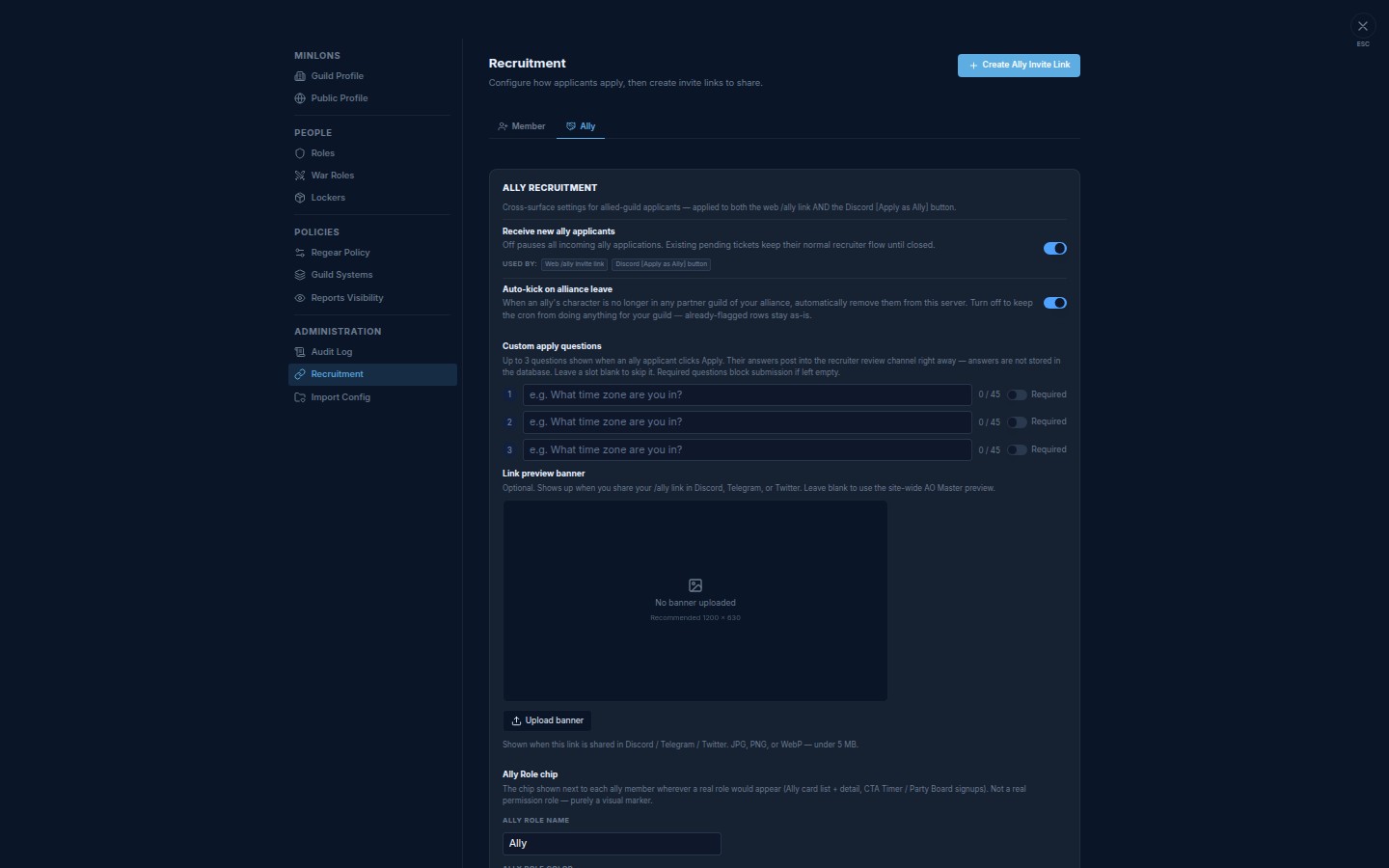
Default behaviour
The toggle defaults to on — every guild that's had ally relationships since this feature shipped keeps the auto-kick behaviour they're used to. When on:
- Once a day the host's ally roster is re-checked against the live alliance roster.
- Allies whose character is no longer in any partner guild flip to Left alliance and the host's Ally Role Sync mode decides what happens to their Discord role (🟢 Off / 🟡 Manual review / 🔴 Strict — immediate purge).
Turn it off
Hosts who want manual control over ally cleanup can flip the toggle off:
- Open Settings → Recruitment → Ally tab.
- Find Auto-kick on alliance leave, under Receive new ally applicants.
- Flip it off.
- Save.
When off, the daily check skips your guild entirely — no status flip, no role revoke. Allies you'd already removed in earlier runs stay removed; only the next round's processing is paused.
Pair with Ally Role Sync
The Discord-role outcome composes off the same three modes used for Member-side role sync:
- 🟢 Off — status flip only; the bot never touches the ally's Discord role.
- 🟡 Manual review — auto-kicked allies appear in the Stale Ally Roles review list on Discord Integration → Integrations → Ally; you bulk-strip from there.
- 🔴 Strict — immediate purge — bot strips the ally's Discord role + DMs them within a minute.
Cross-links
- #Allies channel reference — what the host's roster looks like + how staff interacts with it.
- Discord — Ally flow — the Discord-side application + approval pipeline.
- Settings → Recruitment — the Ally outer tab where the host configures apply questions + Ally Role chip + invite codes.
- Discord Integration — the Discord pairing surface; Integrations → Ally sub-page is where the host configures the bot side of the pipeline.
- Members — Leave, kick, and revive — sister toggle for the Member pipeline.
- Link previews — the Link preview banner card sits in the same tab as the Auto-kick toggle.