
Plan an event with CTA Maker
A CTA (Call To Arms) event in AO Master is the unit you schedule, plan, and run for a guild raid / war / fight. Shot-callers create CTAs on #CTA Maker; members sign up on #CTA Timer; during the event, party leaders upload roster screenshots that feed the ZvZ Attendance report.
This page covers the planning side (Events + Presets tabs on #CTA Maker). For the running side, see Run + track attendance. For the cross-check report, see Cross-check + season archive.
Permissions
The page requires either:
- Manage ZvZ Events — create, edit, archive, cancel events. Full control.
- Shot Call Party Board — narrower: can compose parties + force-assign / kick members on an existing event, but can't create/cancel events themselves.
What's on the page
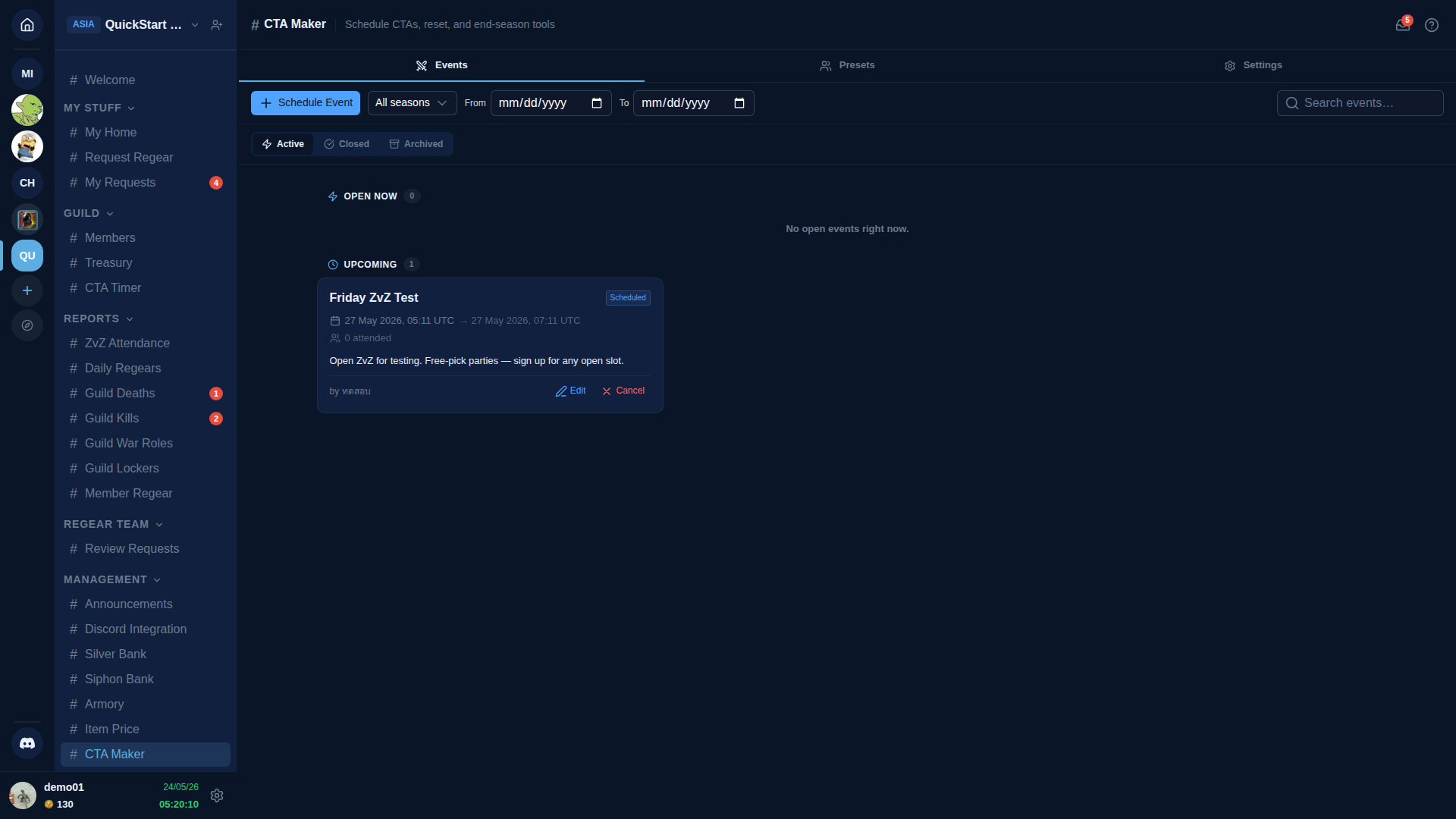
Three tabs: Events, Presets, Settings.
Events tab (default)
The Events tab is your CTA workspace. Sub-sections:
- Active — three pill filters: Active / Closed / Archived. The Active list shows two sub-groups:
- OPEN NOW — events currently within their attendance-upload window (party leaders can upload roster screenshots).
- UPCOMING — events scheduled for a future time.
- Search + From / To date filters + All seasons dropdown for narrowing the list.
Each event card shows: name, date/time (UTC), status pill (e.g. Open for upload / Upcoming / Closed), attendance count so far, who created it. Card actions: Edit, Close (closes the upload window early), Cancel (delete the event, no audit lost).
Schedule Event
Click + Schedule Event to open the planner. Fields:
- Name — short, displayed everywhere the event shows up.
- Season — group events into seasons for the cross-check + archive workflow.
- Date + start time (UTC).
- Sign-up window — how long before the event members can sign up (default = sign-ups open immediately + close at event start).
- Attendance-upload window — how long after event start party leaders can upload roster screenshots (default 2 hours).
- Party preset (optional) — pick from saved presets for the comp.
- Recurrence (optional) — make this a weekly / daily series.
- Notify members (checkbox) — send an inbox ping to every guild member when the event is created.
- Notify Allies (sub-checkbox, only visible when the guild has the Alliance pipeline active) — also ping every active ally. Greys out unless Notify members is checked above. Hidden entirely when the guild isn't on a tier that has Alliance unlocked, or when the Alliance pipeline is in hold mode.
Save and the event appears in UPCOMING until its start time, then flips to OPEN NOW.
Presets tab
Save reusable party compositions for fast event scheduling. A preset is a named template with a set of parties (each party = N slots, each slot bound to a war role). Reuse by picking it during Schedule Event.
Compose presets with a drag-and-drop slot editor: drop war roles into slots, set headcount per party, drag to reorder parties. Presets are guild-wide — every shot-caller can pick them.
On mobile, the Preset Properties card slides up as a bottom drawer when you tap Edit Properties on a preset, mirroring the drawer used on the event detail page. Tap outside the drawer or use the close button to dismiss.
Settings tab
Defaults for new events: sign-up window, upload window, season-rollover policy, default party preset. Saves the defaults once + every Schedule Event prefills from them.
After Schedule
Once scheduled, the event:
- Appears on
#CTA Timerfor members to sign up (within the sign-up window). See Run + track attendance for the member sign-up side. - Counts toward ZvZ Attendance for participation stats once uploads come in.
- Gets a Discord announcement (when the bot is paired and the announcement channel is configured).
Cross-links
- Run + track attendance — sign-up flow + party roster uploads + live event handling.
- Cross-check + season archive — end-of-season report + archive workflow.
- Settings → War Roles — where party-slot war roles come from.
- Settings → Guild Systems — toggle ZvZ System + sub-toggles (ZvZ Attendance, Party Board).