
Settings → Regear Policy
The Regear Policy tab is the one-stop hub for every guild setting that shapes how regears flow — from "items or silver?" all the way down to "what do we do when a member submits gear that doesn't match their war role?". Open it from the Settings modal under POLICIES → Regear Policy.
This page is the operator's reference. For the workflows the settings control, see Item mode — cut-off + locker and Silver mode — payout. For the channel-level submit flow, see Members — submit a regear.
Permissions
The whole Regear Policy tab requires Manage Guild. Anyone with that permission can open the tab, edit every value, and save. There's no per-section gate — if you can see it, you can change it.
The War Role Silver Caps sub-modal also needs Manage War Roles — it's a parallel editor for the Silver Cap on each war role, which would otherwise belong on the War Roles tab.
The four sections
The tab is divided top-to-bottom into four named sections. Three of them are always visible; the Setup Checklist card only appears when you've chosen a silver payout mode.
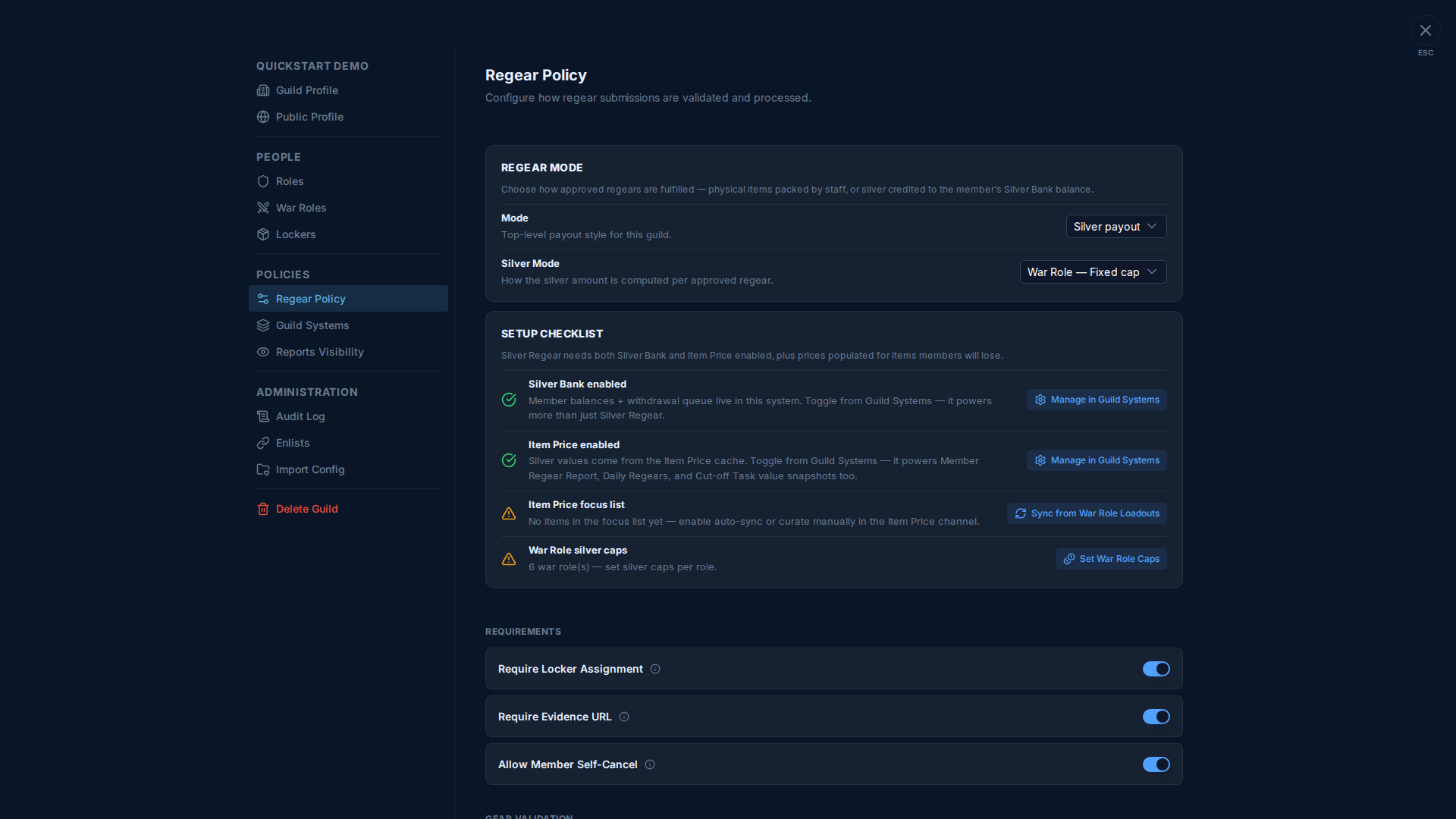
1. Regear Mode
Top-of-page panel. The Mode dropdown chooses the top-level payout style:
| Mode | Effect |
|---|---|
| Item return | Approved regears land on a Cut-off Task; staff packs items into lockers. See Item mode. |
| Silver payout | A second Silver Mode dropdown appears below to pick which silver math applies. Approved regears get a Payout action on #Review Requests. See Silver mode. |
When Mode = Silver payout, the cascading Silver Mode dropdown offers three sub-modes:
| Silver Mode | What it pays |
|---|---|
| Sum by Item Price | The sum of every lost slot's silver price (snapshotted at approve time from the Item Price channel). Tracks real market values. |
| War Role — Fixed cap | A flat amount equal to the chosen war role's Silver Cap. Ignores actual loss. |
| War Role — Capped by actual | The smaller of (sum of item-price snapshots) or (the role's Silver Cap). Pays actual but never overshoots. |
Mode-switch safety gate
Switching modes on a live guild runs a check before saving. The flip is blocked when:
- Leaving item mode → any cut-off task still has unresolved packing.
- Leaving silver mode → any approved silver request hasn't been paid yet.
Failure pops a toast with a deep-link to the affected list ("Pay 3 pending payouts before switching" / "Finish 2 cut-off tasks before switching"). Pending requests are mode-agnostic — they aren't blocked and just use the new mode when they get approved.
Silver Bank balances are never cleared by a mode switch. The bank is a persistent system; member balances roll over and remain withdrawable regardless of guild mode changes.
2. Setup Checklist (silver mode only)
When you pick any silver sub-mode, a Setup Checklist card appears below the Regear Mode panel. Each row shows ✓ (green) or ⚠ (orange) depending on whether the requirement is satisfied:
| Row | What's checked | Action button |
|---|---|---|
| Silver Bank enabled | The Silver Bank system is turned on for this guild | Manage in Guild Systems — opens the Guild Systems tab so you can flip the toggle there. |
| Item Price enabled | The Item Price system is turned on for this guild | Manage in Guild Systems — same as above. |
| Item Price focus list | The list of items the price cache tracks | Sync from War Role Loadouts — auto-populates the focus list from every war role's required items. Once enabled, the row shows a green Auto-sync enabled badge instead of the button. (Only visible after Item Price is saved-on — the card hides this row until then.) |
| War Role silver caps (war-role modes only) | Each war role has a Silver Cap value set | Set War Role Caps — opens a sub-modal with one number input per war role. |
Status-only display for cross-feature toggles
The Silver Bank enabled and Item Price enabled rows show status + a Manage in Guild Systems button, but no inline toggle — by design. Both systems power features beyond Silver Regear (Member Regear Report, Daily Regears, the #Silver Bank channel, the #Item Price channel, Cut-off Task value snapshots…), and toggling them off from inside the Regear Policy tab would silently break those features elsewhere.
The canonical home for these toggles is Settings → Guild Systems — see Guild Systems for the canonical-source rule.
War Role Caps sub-modal
Clicking Set War Role Caps opens a self-contained editor. The modal has its own dirty state and its own Save button — changes here don't depend on the parent page's Save.
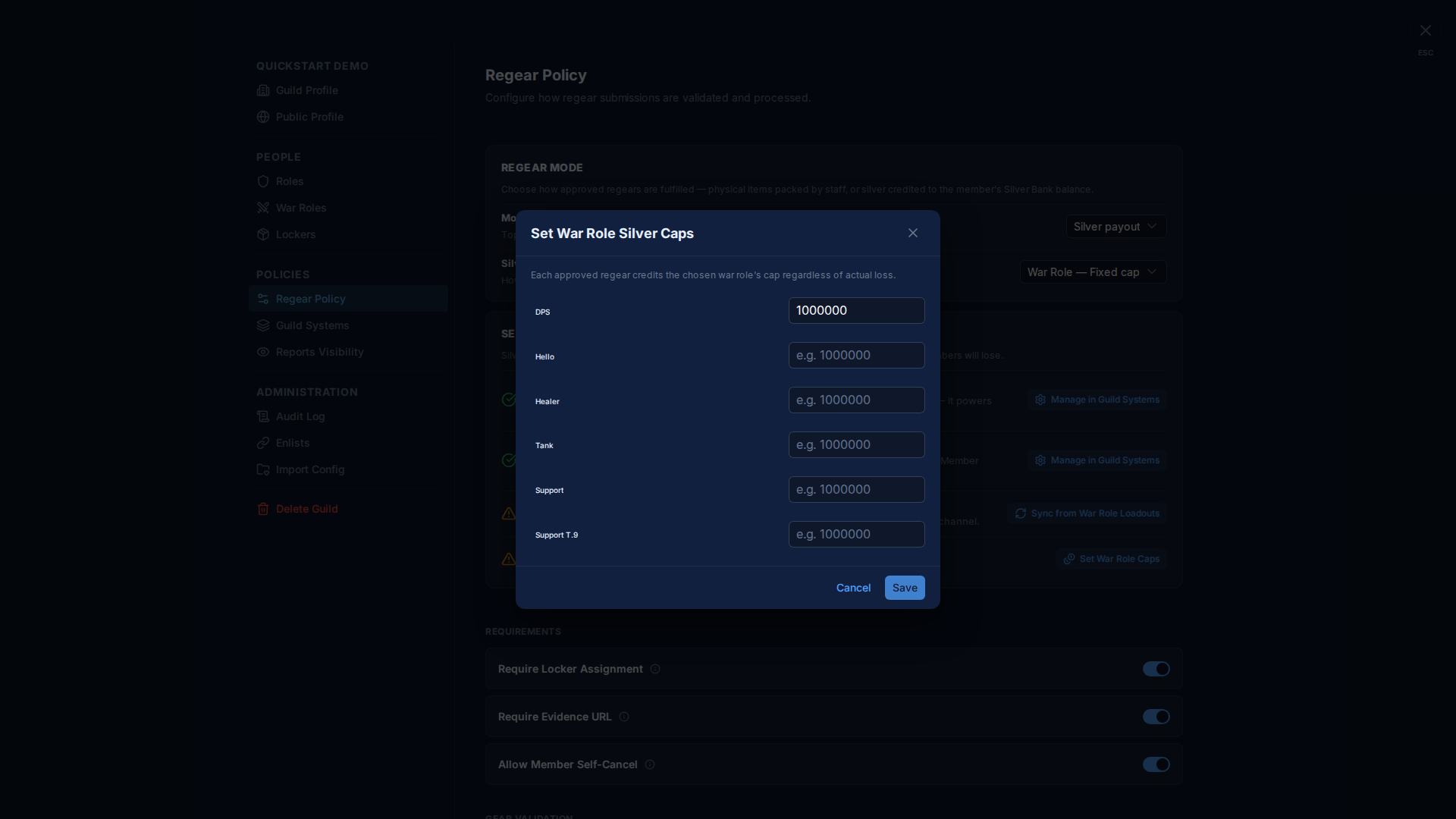
- One row per war role.
- The explanation line at the top swaps with the active sub-mode — "Each approved regear credits the chosen war role's cap regardless of actual loss" for Fixed mode, "Caps the maximum credit at the role's cap — pays actual loss when lower" for Capped mode.
- Leave a field blank to clear the cap. Roles without a cap will block Payout (with a "War role has no silver cap configured" error) when chosen at claim time.
- The same value is also editable on Settings → War Roles → Edit → Silver Cap for each individual role. Use whichever editor is convenient — they edit the same field.
3. Requirements
Three guild-wide toggles that gate the submit flow:
| Toggle | Default | What it does when ON |
|---|---|---|
| Require Locker Assignment | ON | Members without a locker assignment can't submit a regear. Forces staff to handle locker setup before the member's first death. |
| Require Evidence URL | OFF | Members must paste a URL (Discord message link, YouTube clip, screenshot host) when submitting an Overcharge request. Death regears auto-resolve from Albion's public death feed and never need evidence. |
| Allow Member Self-Cancel | ON | Members can cancel their own pending requests until staff approves. With this OFF, only staff can reject a pending request. |
4. Gear Validation
When a member submits a regear, the server compares each slot to the war role's loadout. Three policy dropdowns decide what happens when something doesn't match:
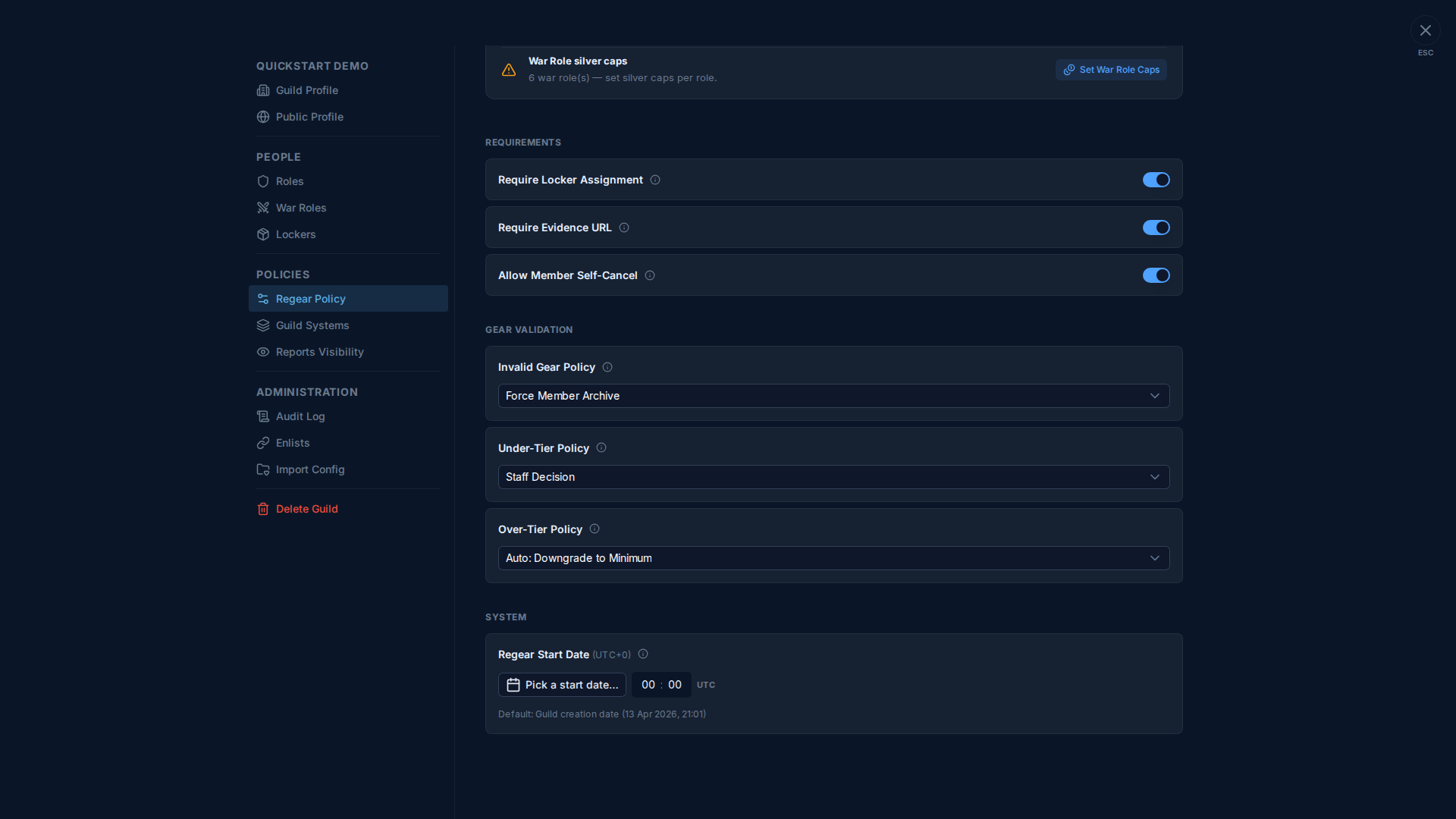
Invalid Gear Policy
For slots where the item isn't part of the war role's loadout at all (wrong family, wrong weapon class).
| Option | Behaviour |
|---|---|
| Staff Decision | Submission goes through; staff sees the violation flag and decides per-request. |
| Auto: As-Is (Sum Tier) | Submission auto-passes; the recorded item is whatever the member died with. |
| Force Member Archive | Submit is blocked — member sees "This regear can't be submitted — your equipment is invalid for this war role." The death is auto-archived from their Deaths tab. |
Under-Tier Policy
For slots where the item tier is below the role's minimum.
| Option | Behaviour |
|---|---|
| Staff Decision | Submission goes through; staff decides. |
| Auto: Upgrade to Minimum | Server bumps the recorded tier to the role's minimum. Member is paid as if they died wearing the correct tier. |
| Auto: As-Is (Sum Tier) | Submission auto-passes at the actual lower tier. |
| Force Member Archive | Submit blocked; death auto-archived. |
Over-Tier Policy
For slots where the item tier exceeds the role's minimum (rare but legitimate — a member splurged on T8 instead of the T6 minimum).
| Option | Behaviour |
|---|---|
| Staff Decision | Submission goes through; staff decides whether to pay actual or downgrade. |
| Auto: Downgrade to Minimum | Server clips the recorded tier down to the role's minimum. Member is paid the cheaper price. |
| Auto: As-Is (Sum Tier) | Submission auto-passes at the actual higher tier. |
There's no "Force Archive" option for over-tier — it's rarely worth blocking someone for over-spending on regearable gear.
5. System
The single setting here is the Regear Start Date cutoff:
- Only deaths that occurred after this UTC timestamp can be regeared. Deaths before are hidden from the Deaths tab.
- Default = the guild's creation date. The page shows the resolved default below the picker.
- The 🔄 reset button next to the picker clears any custom date and falls back to the default.
- Useful when a guild relaunches a season, wipes the regear policy, or doesn't want to honour deaths from a pre-test phase.
Setting the date forward retroactively
Changing the Regear Start Date to a more recent value hides previously-submitted regears from the Deaths tab (members lose the ability to retry an archive), but doesn't delete anything from the requests pipeline. Approved / paid regears stay in #Member Regear Report and the Silver Bank ledger.
Save flow
The page has a sticky "You have unsaved changes" bar at the bottom when any tracked field differs from the saved state. Click Save Changes to commit (server validates the mode-switch gate; failures roll the form back). The War Role Caps sub-modal has its own Save and doesn't depend on this bar.
The Setup Checklist's two cross-system rows (Silver Bank enabled and Item Price enabled) are status-only here — they don't contribute to the unsaved-changes bar even when their saved state changes. To flip those toggles, use Guild Systems.
Cross-links
- Item mode — cut-off + locker — what happens when Mode is set to Item return.
- Silver mode — payout — what happens when Mode is set to Silver payout (any sub-mode).
- Settings → Guild Systems — canonical home of Silver Bank + Item Price toggles + the Setup Checklist pattern Bible.
- Settings → War Roles — the other place to edit each role's Silver Cap.
- Members — submit a regear — where the validation policies hit the member's view.