
Quick Start — Members
You just joined a guild. This page walks the first 5 minutes — link your Albion character, find the channels you'll actually use, and submit your first regear.
If you haven't signed up for an AO Master account yet, start with Sign up + verify email.
If you're a guild Owner reading this, go to Quick Start — Owners instead.
What you see after joining
Right after the recruiter approves your application, you land on #Request Regear — the channel where most member time gets spent. The guild's #Welcome page is the first channel in the sidebar; click it any time to see the guild's name, banner, member count, and a Recent Kills feed.
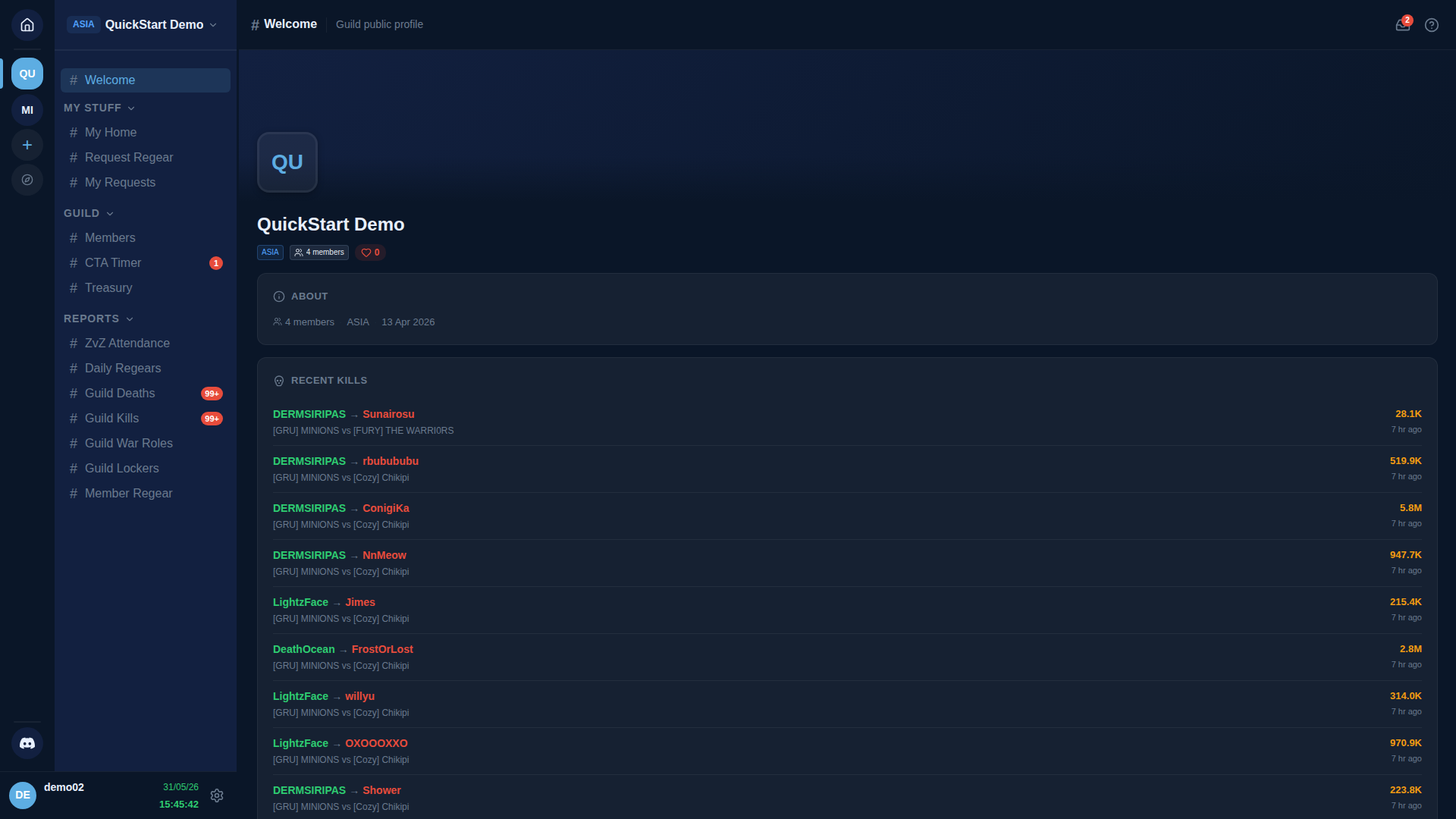
The sidebar groups what's visible into:
| Group | What's there |
|---|---|
| MY STUFF | Your personal dashboard, regear submit, regear history. |
| GUILD | Shared roster + CTA timer + treasury (and #Allies when the guild runs an alliance). |
| REPORTS | Attendance leaderboard, regear roll-ups, death / kill feeds. |
You don't see staff-only sections (no REGEAR TEAM, no MANAGEMENT) — those are gated by permissions you don't have. If your guild later promotes you to a recruiter, regear staff, or owner, more groups appear automatically.
If your guild is part of an alliance and you applied via an /ally/<code> link (not a member link), you're an ally rather than a member. The view is narrower — you see #Welcome + a short allowlist of channels and the Members section is replaced by #Allies. See Members — Alliance for the ally-side walkthrough.
Step 1 — Link your Albion character
Open #Members → find your row → click 🔗 Link Character. Type your Albion character's name, pick the right one from the search results, confirm.
Why it matters:
- Silver-mode regears land on the linked character's Silver Bank balance.
- ZvZ Attendance screenshots match against linked-character names.
- Your character name shows up everywhere you do.
Full walkthrough: Members — Link an Albion character.
Step 2 — Check your wallet
Open #My Home from MY STUFF.
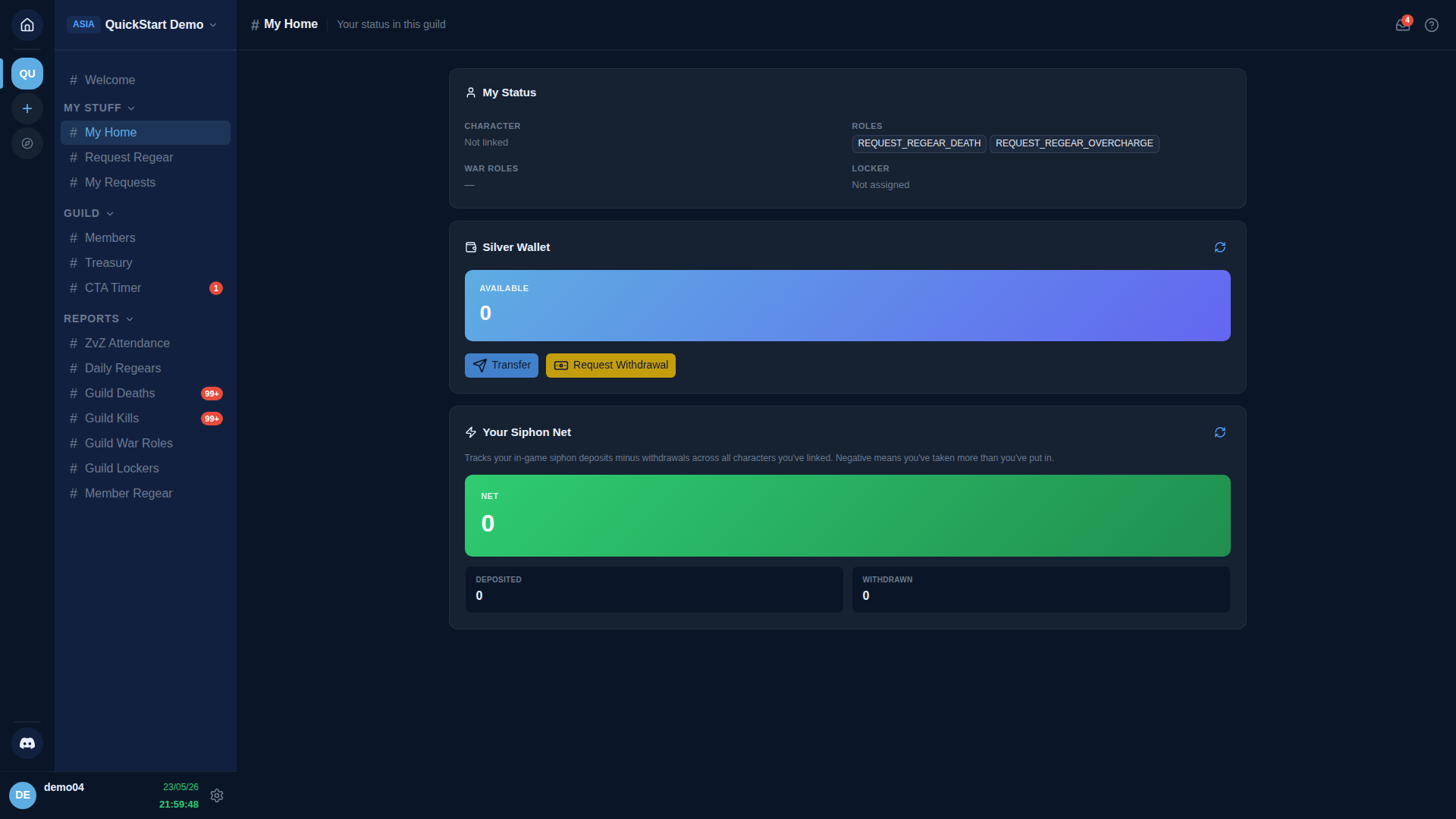
Three cards:
- My Status — your character, your roles, your war roles, your locker assignment.
- Silver Wallet — your Silver Bank balance (per linked character). Empty until your first regear payout.
- Your Siphon Net — your siphon contribution score (deposits minus withdrawals from the guild's siphon chest).
If you haven't linked a character yet, the Wallet shows 0 (no character → no balance).
Step 3 — Submit your first regear
When you die in Albion, the death shows up on #Request Regear → Deaths within a few minutes (the bot polls Albion's public death feed on a schedule).
- Open
#Request Regear. - Find the death card you want to claim.
- Click Request Regear.
- Pick the War Role you were running for that death.
- Watch the per-slot validation badges — they tell you whether each slot matches the role's loadout.
- (Optional) Type a note for the reviewer.
- Click Submit.
Track progress on #My Requests. Full walkthrough: Members — submit a regear.
Step 4 — Sign up for a CTA (when one's scheduled)
Open #CTA Timer. Active + upcoming events show up here. Click an event card → Sign up → pick a party slot if Party Board is on. Show up in-game at the scheduled time.
Full walkthrough: Run + track attendance.
What you can't do yet
As a default Member, you can:
- See guild reports.
- Submit regears + overcharges.
- Sign up for CTAs.
- View your own wallet.
You can't:
- Approve / reject other people's regears (needs Approve Regear Requests).
- Edit roles, war roles, lockers, or guild settings.
- Pack cut-off tasks.
If you've been promoted to staff, see Quick Start — Staff for what unlocks.
Cross-links
- Members — Link an Albion character
- Members — submit a regear
- #My Home
- Quick Start — Owners — if you end up running your own guild.