
Settings → Import Config
The Import Config tab lets you save the current guild's setup (roles, war roles, locker groups, regear policy) as a reusable blob — then apply that blob to a different guild later. Open it from the Settings modal under ADMINISTRATION → Import Config.
Use it when:
- You're setting up a sibling guild (alt account, sister chapter) and want to mirror this guild's config.
- You're recovering after a wipe — save your config now so a future you can restore it.
- You want to try one of the official templates as a starting point.
Permissions
The tab requires Manage Guild. Both saving and applying need it.
What's on the tab
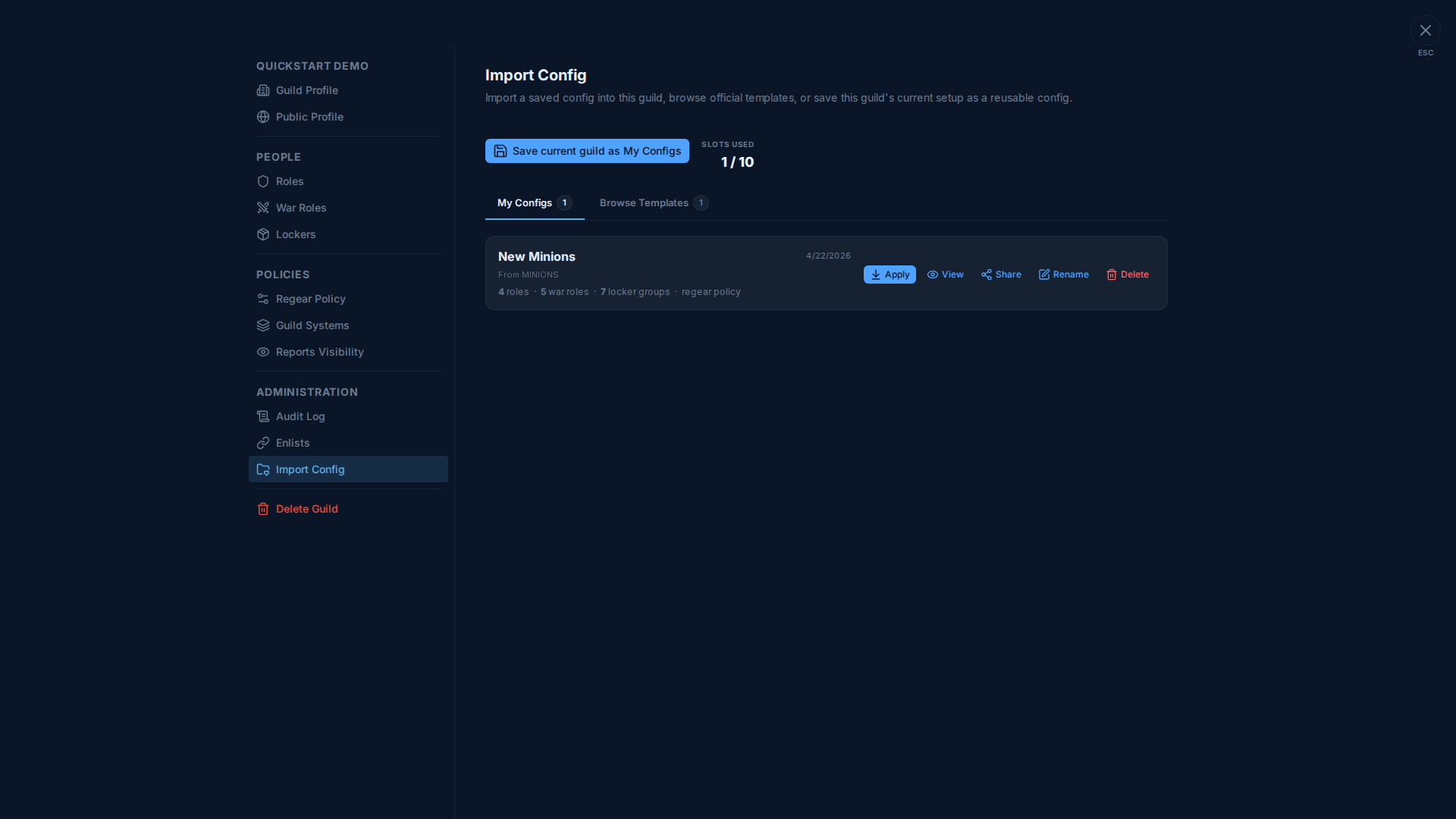
The toolbar has:
- Save current guild as My Configs — snapshot this guild's config into a new slot.
- Slots used N / M — your tier's quota (free tier = 10 slots; higher tiers more).
Two tabs underneath:
| Tab | What's there |
|---|---|
| My Configs | Configs you've personally saved. Each card lists the source guild name, save date, and a one-line resource count (e.g. "4 roles · 5 war roles · 7 locker groups · regear policy"). |
| Browse Templates | Official starter configs published by the AO Master team for common guild types (PvE, ZvZ, mixed, …). Read-only — you can apply them but not edit. |
Per-card actions
| Button | What it does |
|---|---|
| Apply | Overwrites this guild's matching resources with the config's. Destructive — the existing roles / war roles / locker groups / regear policy get replaced. The modal walks through a conflict-preview before committing. |
| View | Read-only inspection of what's inside the blob (every role with its permissions, every war role with its loadout, etc.). Useful before you click Apply. |
| Share | Generate a public share link https://ao-master.com/s/<code> you can send to someone else — they can View + Apply to their own guild without seeing yours. |
| Rename | Rename the saved slot (cosmetic — doesn't touch the underlying config). |
| Delete | Remove from your slot list. Cascades the share link too. |
What's in a config blob
A saved config includes:
- Roles — name, colour, position, permissions. Member assignments are NOT included (a sibling guild has different members).
- War roles — name, colour, position, loadouts (per-slot item + tier + No Regear flag), Silver Cap. Again, no member assignments.
- Locker groups — name, colour, locker count, sort order. Per-member locker assignments NOT included.
- Regear policy — Mode + sub-mode, Setup Checklist items, Requirements toggles, Gear Validation policies.
What's not included: members, the actual silver bank balance, the actual armory inventory, audit log, channels' historical data. Apply produces a guild with the same shape as the source, not the same state.
Saving your guild
Click Save current guild as My Configs. The modal asks for a name (defaults to the guild's display name). The new card appears in My Configs ready to View, Apply elsewhere, or Share.
Applying a config
Click Apply on the card. A walk-through shows:
- Which existing resources will be overwritten (roles with the same name as the config's roles → replaced).
- Which resources will be added (new from the config, no current match).
- Which resources will be kept untouched (existing in your guild, not in the config).
Confirm and the changes commit. The audit log records the apply for transparency.
Cross-links
- Settings → Roles · Settings → War Roles · Settings → Lockers · Settings → Regear Policy — the four resource types this tab can save / apply.
- Settings → Audit Log — every Apply writes a row here.