
Run the event + track attendance
Once a CTA is scheduled (see Plan an event), the live operational flow happens here: members sign up, the shot-caller assigns parties, and during the event party leaders upload roster screenshots that feed the ZvZ Attendance report.
Three channels are involved:
#CTA Timer— member-facing. Shows upcoming + open-now events with sign-up buttons.#Guild War Roles— context reference (which roles exist, who's assigned).#ZvZ Attendance— the report this all feeds.
Permissions
- Everyone: see
#CTA Timer, sign up for events. - Record ZvZ Attendance — upload party-roster screenshots during the event window (Party Leader role).
- Shot Call Party Board — force-assign members to slots, kick from slots, manage party comps on an event.
- Manage ZvZ Events — late-upload override + manual attendance edits.
Member sign-up on CTA Timer
Members open #CTA Timer (under MY STUFF in the sidebar — always visible).
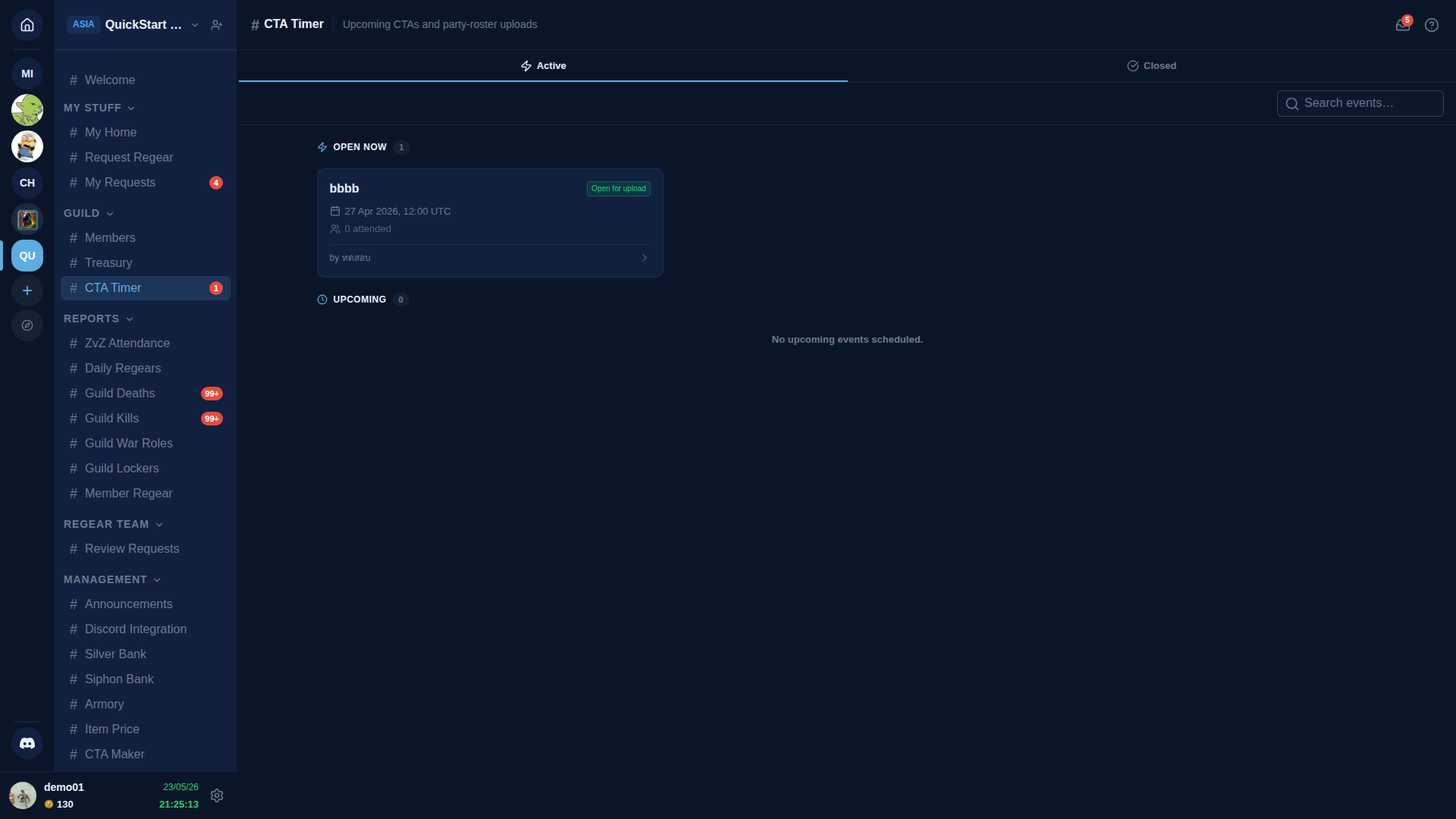
Each event card has the same headline info as #CTA Maker (name, time, status, attended count) plus a chevron — click to open the event detail with:
- Sign up button (when within the sign-up window).
- Pick a slot UI when Party Board is on — list of parties with open slots; members claim a slot in the role / preset they want.
- Cancel sign-up if they signed up and changed their mind.
Once signed up, the member's name appears on the party slot they picked. The shot-caller can rearrange (with Shot Call Party Board permission) or kick.
Allies see CTA Timer too
When the guild runs an alliance (Members — Alliance), approved allies see #CTA Timer from their narrower sidebar. They sign up the same way regular members do; their signup slot carries the Ally Role chip + their home guild name so the shot-caller can tell apart allies from regulars at a glance.
If the host guild creator ticked Notify Allies at event-creation time (see Plan an event), every active ally gets a ping when the event is published.
If the host's tier drops below Pro and the Alliance pipeline enters hold mode, allies see a hold banner on #CTA Timer explaining that new signups are paused until the host restores their tier. Existing signups remain intact.
During the event — party leader uploads
When the event reaches its start time + the attendance-upload window opens, party leaders take in-game roster screenshots (the panel that lists everyone in your party) and upload them on #CTA Timer → event detail → Upload roster screenshot.
The system runs the screenshot through OCR, matches names against your guild roster, and records each matched name as attended for this event. Mismatched names show in a review pane for the shot-caller to confirm / discard.
Upload as many screenshots as needed — every party leader uploads their own party's roster, OCR pools the results, duplicates dedupe.
Late uploads
After the upload window closes, the Upload button greys out. Re-opening it requires Manage ZvZ Events + a manual late-upload override on the event detail. The override is audit-logged.
What gets recorded
Each attended member gets one row in the ZvZ Attendance table for this event. Over time these rows roll up into:
- Per-event attendance list — visible on the event detail.
- Per-member attendance rate — visible on the member's
#Membersrow + on the ZvZ Attendance report. - Per-season totals — visible on the Cross-check + season archive report.
Manual attendance edits
Shot-callers / managers with Manage ZvZ Events can:
- Add an attended member to an event manually (e.g. someone in the party but the screenshot missed their row).
- Remove an attended member (false-positive OCR match).
- Mark an event "no upload" so it doesn't count against attendance rates (cancelled in-game for reasons unrelated to AO Master).
All manual edits are audit-logged.
Cross-links
- Plan an event with CTA Maker — the scheduling side.
- Cross-check + season archive — end-of-season report + archive workflow.
- ZvZ Attendance report — the readout this whole flow feeds.