
Submit a regear (member side)
When you die in Albion, AO Master picks up the death from Albion's public game data feed and surfaces it on your #Request Regear channel. You pick the death, pick the war role you were running, and submit — staff sees it in #Review Requests within seconds.
This page is the member's side of the pipeline. For the staff approve / reject step, see Staff — review + approve. For the end-to-end view including both regear modes (item / silver), see Regear pipeline overview.
Permissions
You need the Request Death Regear permission to see the Deaths tab + submit death regears. You need Request Overcharge to see the Overcharge tab + submit OC requests. Both live under the Member Self-Service section of Edit Role → Permissions. Most guilds grant both to every member via the @everyone role.
Open the Request Regear channel
In any guild's sidebar, MY STUFF → # Request Regear. The page has four tabs:
| Tab | What's there |
|---|---|
| Deaths | Your recent deaths the bot picked up automatically — submit a regear from any card. |
| Overcharge | Submit an Overcharge request manually (you upload an image; staff reviews). |
| Archived | Deaths you dismissed (no regear claim). |
| Find missing | Manually paste an Albion event URL if a death didn't auto-sync. |
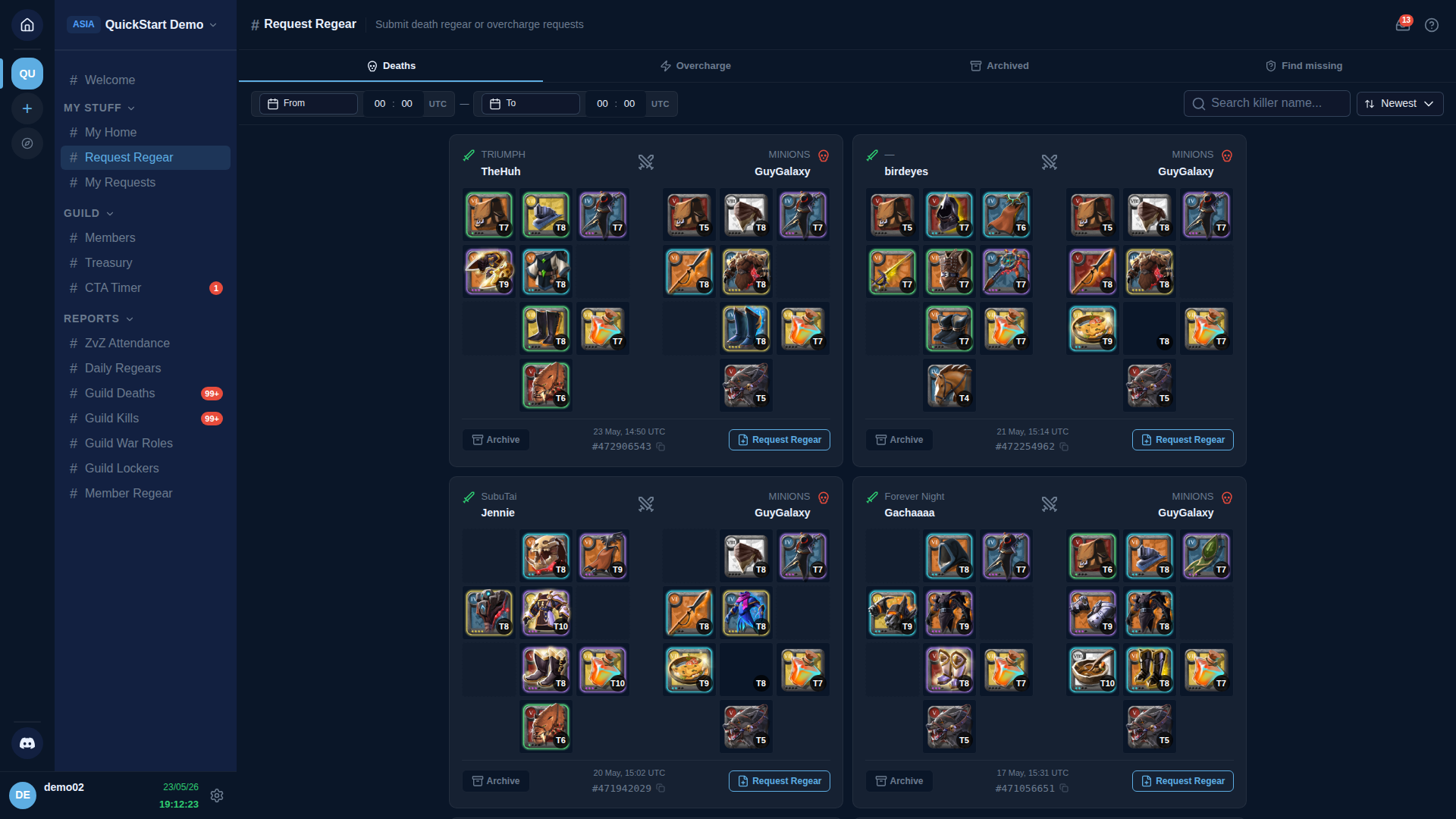
Each death card shows when it happened, who killed you, and the equipment you were wearing. Three actions:
- Archive — hide this death (no regear claim).
- Copy — copy the Albion event URL (paste into chat to share).
- Request Regear — open the submission overlay.
Submit the regear
Click Request Regear on the card you want to claim. The overlay shows your loadout as a 3×4 equipment grid (the same layout as Albion's gear UI):
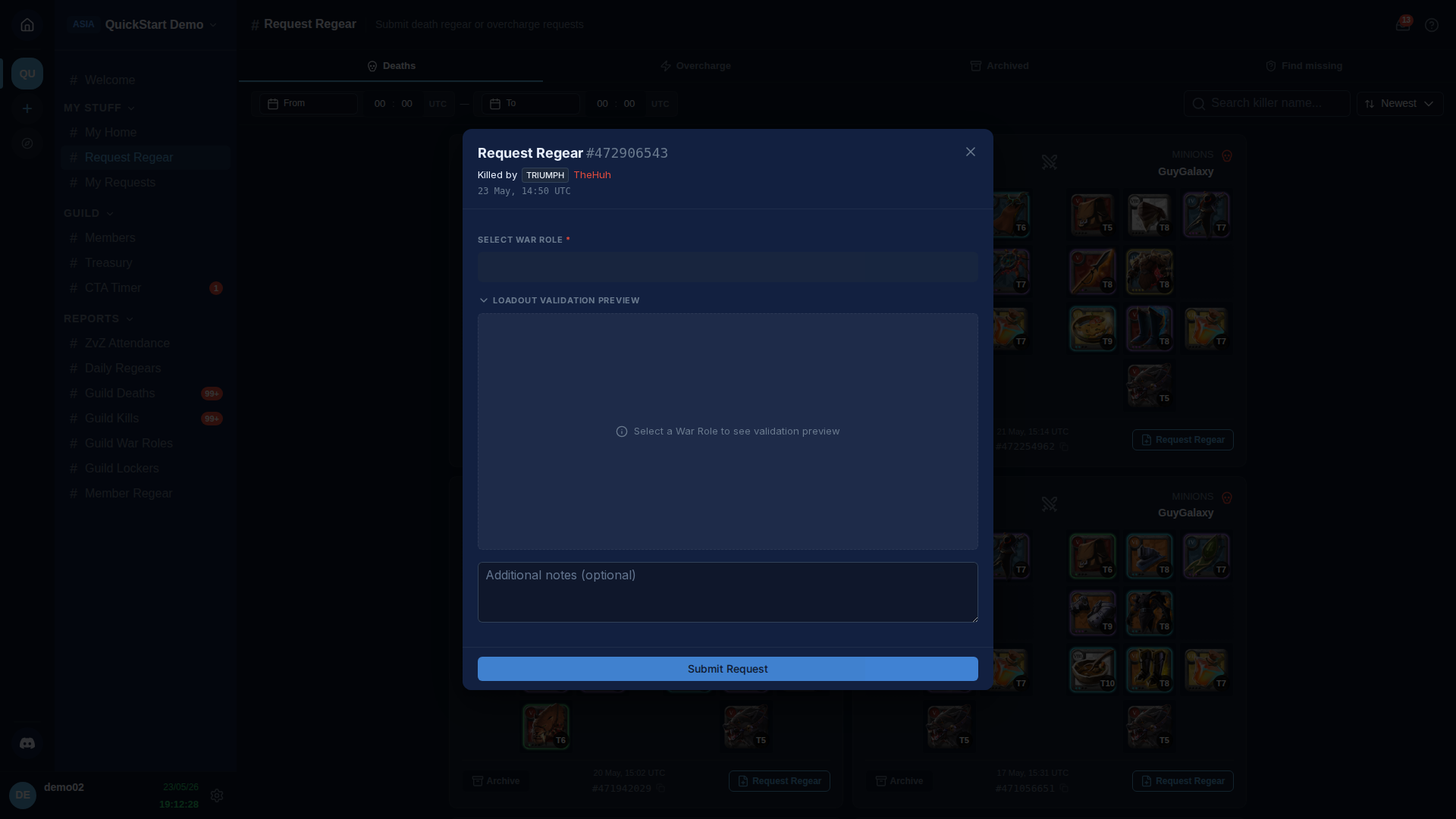
You need to:
- Pick the war role you were running. The dropdown lists every war role configured for the guild (Settings → War Roles). Each role's loadout defines what items are valid for each slot at what tier.
- Watch the per-slot validation badges. Each cell in the equipment grid compares what you died wearing against the role's loadout:
- 🟢 OK — slot matches the role's expectation.
- 🟡 Under-tier — the item is a lower tier than the role calls for.
- 🔵 Over-tier — the item is a higher tier (rare, treated per guild policy).
- 🔴 Invalid — the item isn't part of this role's loadout at all.
- (Optional) Type a short description if you want to explain something to the reviewing staff ("ran a Holy Healer not Lifecurse — sub last minute").
- Click Submit.
The validation status of each slot is computed on AO Master's side using the same rules staff see, so what you see is what they see. If your loadout has a slot the role doesn't care about (e.g. food / mount), it's simply ignored.
What guild policy controls
The guild's Regear Policy (Settings → Regear Policy) decides what happens to a submission with validation issues:
- Auto-reject — the request is rejected immediately with a reason.
- Allow — the request goes through to staff review without blocking.
- Staff decision — the staff reviewer is shown the issue and decides per-request.
Each policy slot (invalid / under-tier / over-tier) is configured independently. As a member you don't see the policy directly; you see the Submit button gated when policy is auto-reject ("This regear can't be submitted — your equipment is invalid for this war role"). Talk to your staff if you think your loadout should be accepted.
After submit — track it in My Requests
Once you click Submit, the overlay closes and the request lands on staff's #Review Requests queue. You can track its progress on # My Requests (also under MY STUFF in the sidebar).
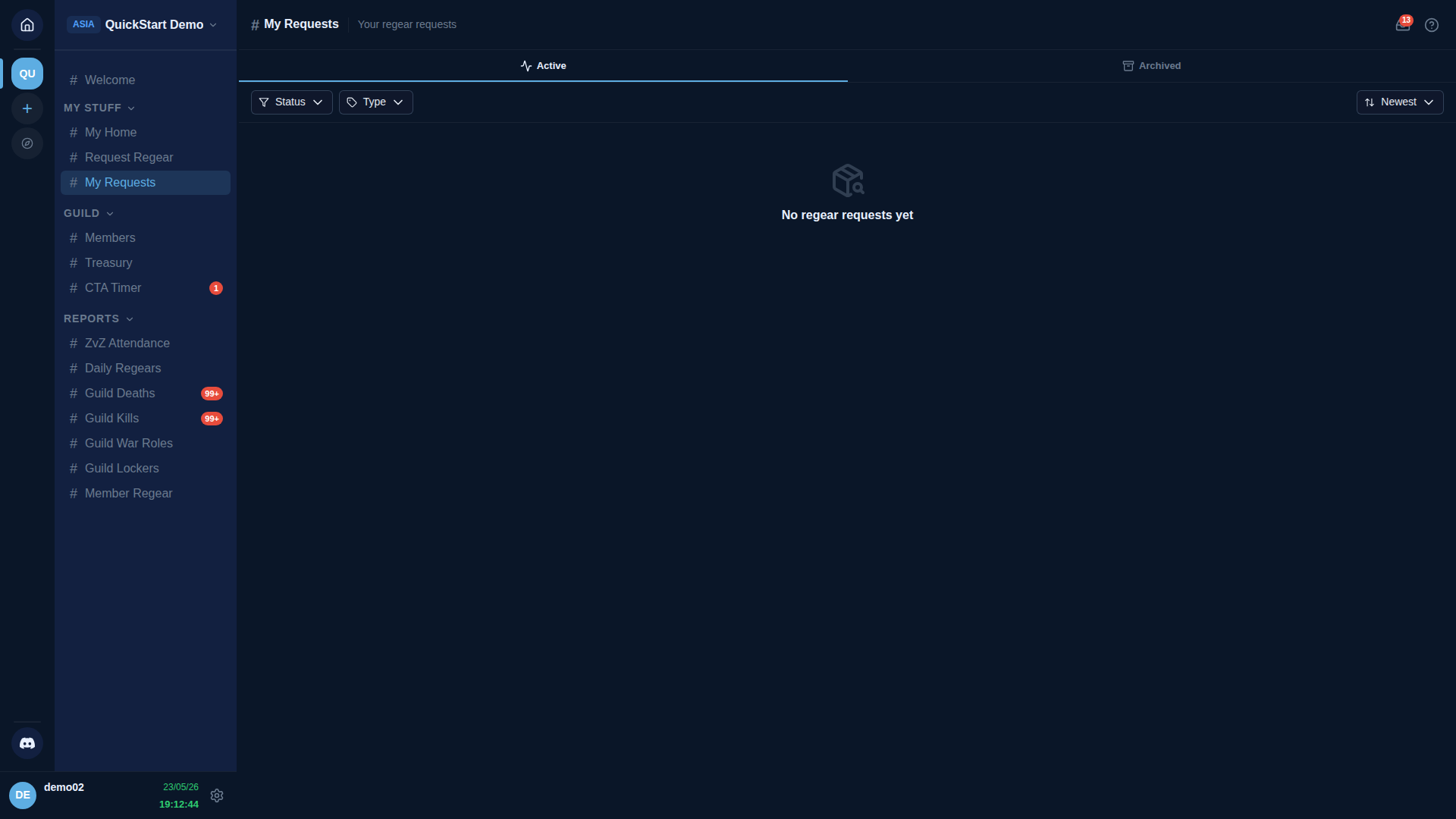
Each row shows a 5-step progress strip:
- Submitted — you just clicked Submit; staff hasn't reviewed yet.
- Approved — staff said yes. Next step depends on the guild's regear mode (see below).
- Cutoff (item mode only) — a packing task was created; a packer claimed it.
- Prepared (item mode only) — the packer marked the items packed into your locker.
- Delivered — items are in your locker (item mode) OR silver is in your Silver Bank wallet (silver mode).
If your guild is in silver mode, the cutoff / prepared steps are skipped — the row shows "💰 Credited X silver" after approval and the silver lands in your wallet on #Silver Bank → My Home. Detail: Silver mode — payout from Silver Bank.
If your guild is in item mode, you'll see locker assignments under # My Home → Locker when the packer finishes. Detail: Item mode — cut-off + locker.
Cancelling a submission
Whether you can cancel your own pending request depends on the guild setting Allow cancel regear (Settings → Regear Policy). If it's off, only staff can reject. If it's on, you'll see a Cancel button next to the row in My Requests until staff approves it. Once approved, you can't cancel — the locker pack / silver credit is already in motion.
Overcharge requests
The Overcharge tab handles items consumed (not lost in a death) — typically food / potion / siphon-related. The flow is similar:
- Open the Overcharge tab.
- Upload a screenshot of the consumed items (chest log paste or in-game inventory).
- Pick the slot type and quantity.
- Submit.
Staff reviews and either approves with a delivery (item or silver) or rejects with a reason. See Staff — review + approve for the receiving end.
Find missing deaths
Sometimes Albion's public death feed drops a death — battle was too big, server hiccup, etc. The Find missing tab lets you paste the death's event URL or event ID manually; AO Master tries to fetch it from the Albion side and surface it on the Deaths tab. Detail in the upstream recovery flow at Member Regear Report.
What's next
- Staff — review + approve / reject — the other side of this flow.
- Regear pipeline overview — both modes (item / silver) end-to-end.
- Discord enlist flow — for the join-and-link side from inside Discord.